A marketing team launches a new landing page, checks GA4 the next morning, and finds no useful data for the primary “Get a quote” button. Pageviews are present. Traffic sources look normal. The button still appears to have vanished from the reports.
That problem usually isn't caused by the button itself. GA4 uses an event-based measurement model, and enhanced measurement doesn't capture every interaction automatically. A dependable GA4 track button click setup requires a deliberate event, stable selectors, meaningful parameters, and testing under the conditions where websites fail, including mobile navigation, single-page applications, modals, iframes, and dynamically injected elements.
Table of Contents
- Why Button Clicks Need Custom Tracking in GA4
- Planning Your Event Name and Parameters Before You Build
- How to Track Button Clicks with gtag.js Directly on Your Site
- How to Track Button Clicks with Google Tag Manager the Reliable Way
- Testing Debugging and Fixing Common Tracking Failures
- Viewing Your Button Click Data and Keeping It Useful at Scale
Why Button Clicks Need Custom Tracking in GA4
Universal Analytics and GA4 don't organize interaction data in the same way. GA4 replaced Universal Analytics with an event-based model, so a button click needs to arrive as an event with context rather than being treated as a pageview variation. Google's documentation explains that a button click can be tracked by creating a new event with either gtag.js on the page or Google Tag Manager, and it warns that events placed above the Google tag snippet won't be processed. See Google's button-click event instructions before changing production code.
Enhanced measurement helps with common interactions, but it isn't a universal button listener. A custom button, JavaScript-controlled control, modal opener, or embedded tour CTA can produce no useful click event unless the implementation explicitly sends one.
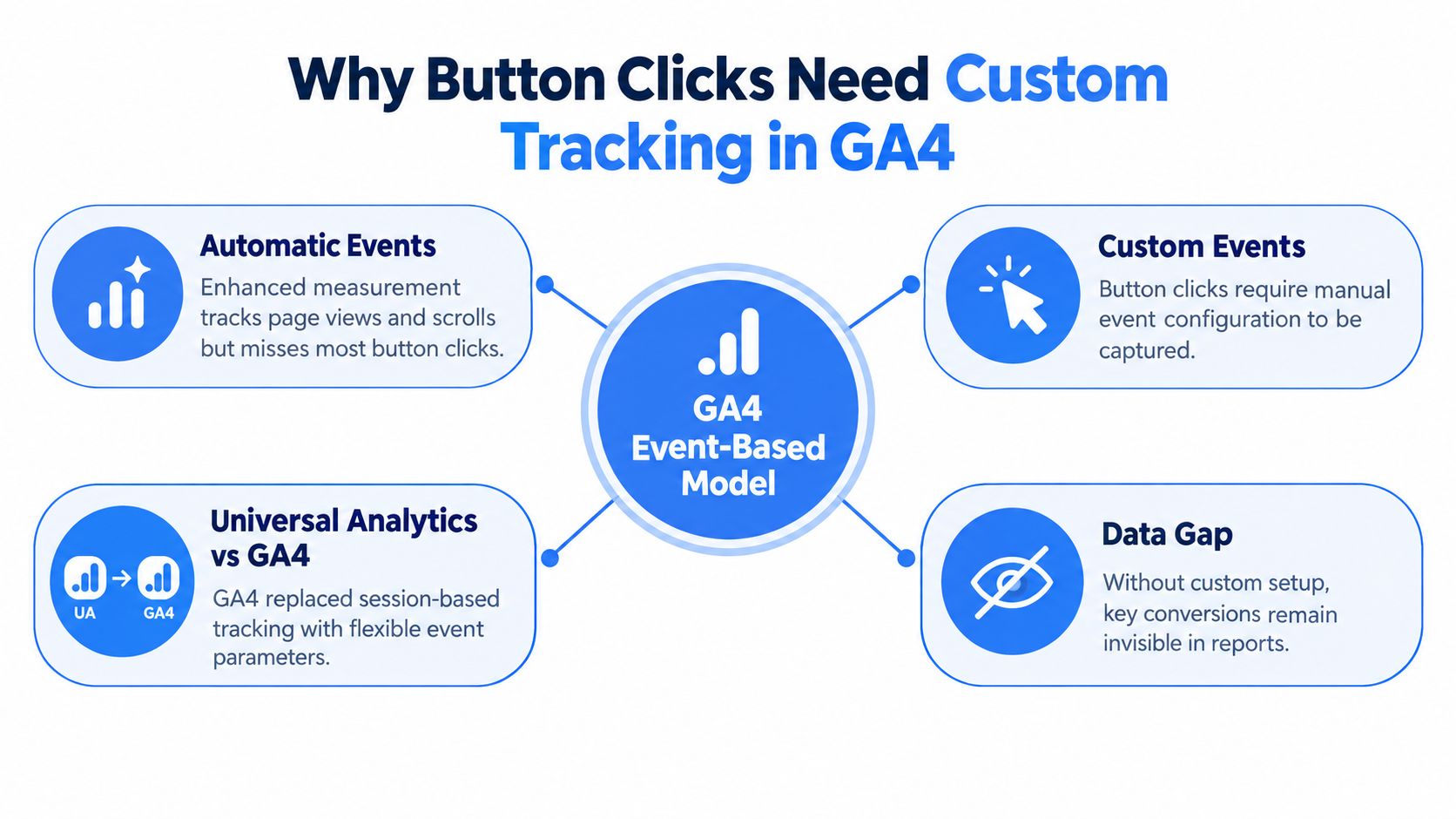
The measurement shift
A pageview answers, “Which page loaded?” A button event should answer, “Which action did the visitor take, where did it happen, and what destination or outcome did it represent?” That distinction matters for lead generation, tour engagement, contact requests, quote flows, and other actions where the click happens before a form submission or route change.
A practical historical pattern has emerged. Marketers commonly create a custom event such as button_click or cta_click, then attach parameters including the button label, page context, and placement. One 2026 industry summary reported that 41% of GA4 implementations relied solely on auto-collected events, while 23% included custom event parameters, with adoption reported at 91% among the top 1,000 websites and 84% among the top 10,000 websites. Those figures are documented in the GA4 adoption summary from Digital Applied.
Choosing the implementation route
Use gtag.js when the site has a small number of known buttons and developers control the code. It keeps the implementation close to the interaction, but every markup or JavaScript change may require code maintenance.
Use Google Tag Manager when marketers need to manage several buttons, destinations, placements, or analytics tags without editing the site repeatedly. GTM adds a configuration layer, so it requires disciplined naming and trigger governance.
Either route can work. The weak implementation is the one that fires an event without preserving enough context to explain what the click meant.
Planning Your Event Name and Parameters Before You Build
A scalable setup starts with the data model, not the trigger screen. If every button receives a different event name, reports quickly fragment into names such as pricing_button_click, header_contact_click, tour_cta_click, and footer_demo_click. The data may technically arrive, but analysts must combine unrelated events before answering a simple question.
A reusable event name, usually cta_click or button_click, keeps the interaction category consistent. Parameters carry the differences.
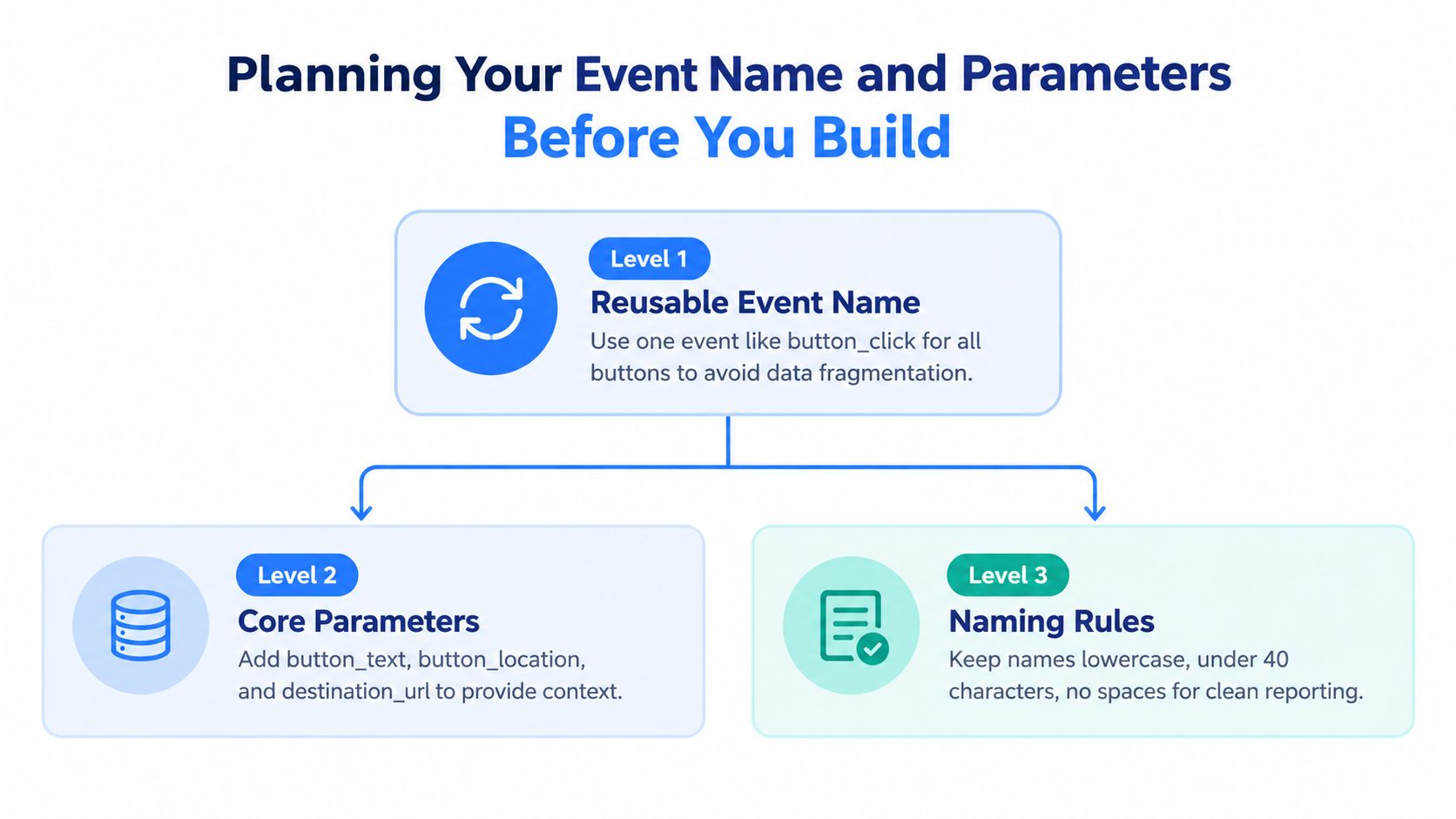
A practical parameter schema
A useful baseline can include:
cta_labelidentifies the action in human terms, such asget a quoteorbook a tour.cta_locationidentifies the component or page area, such ashero,pricing_section,tour_overlay, orfooter.page_pathpreserves the page context, especially when the same label appears in multiple places.destination_urlrecords the intended destination when the control leads to a URL.button_idprovides a stable technical identifier when the site supplies one.
button_text and button_location answer different questions. Text tells the analyst what the visitor saw, while location explains which placement generated the interaction. If two buttons both say “Contact us,” the location and page path separate them without creating separate event names.
The naming rules should stay simple. Use lowercase names, underscores instead of spaces, and labels that remain understandable to someone who didn't build the tag. A stable schema is more valuable than a large collection of highly specific events.
Practical rule: Use event names for the action type and parameters for the button's identity and context.
GA4 can receive custom parameters without immediately making them available in every report. The parameters need to be registered as custom definitions so analysts can use them in standard reporting and Explorations. This governance step matters just as much as sending the event.
Consent also belongs in the design discussion. A site that uses consent controls should align analytics firing with its approved measurement behavior, using guidance such as Virtual Tour Easy's user consent management documentation. A clean taxonomy can't compensate for an implementation that ignores the site's consent requirements.
How to Track Button Clicks with gtag.js Directly on Your Site
The direct gtag.js route suits a site with a limited set of important controls, or a development team that wants the event logic in the page code. The Google tag must load before the event call. Google specifically notes that events placed above the Google tag snippet won't be processed, so placement isn't a cosmetic detail.
A basic implementation looks like this:
<script async src="https://www.googletagmanager.com/gtag/js?id=G-XXXXXXXXXX"></script>
<script>
  window.dataLayer = window.dataLayer || [];
  function gtag(){dataLayer.push(arguments);}
  gtag('js', new Date());
  gtag('config', 'G-XXXXXXXXXX');
</script>
The button listener should appear after that setup:
<button
  id="book-tour"
  data-cta-label="book a tour"
  data-cta-location="hero">
  Book a Tour
</button>

<script>
  document.getElementById('book-tour').addEventListener('click', function () {
    gtag('event', 'cta_click', {
      cta_label: this.dataset.ctaLabel,
      cta_location: this.dataset.ctaLocation,
      page_path: window.location.pathname
    });
  });
</script>
The example uses data attributes instead of hardcoding visible text inside the listener. That choice helps preserve a stable measurement label if the design changes, the text is translated, or the button contains nested markup.
Where direct code breaks
Inline handlers such as onclick="gtag(...)" can work for a quick test, but they become difficult to govern across a large site. They also tend to fail when a single-page application replaces the element, when a modal renders after the initial page load, or when a component library changes the markup.
A delegated listener can handle dynamically inserted controls more reliably:
<script>
  document.addEventListener('click', function (event) {
    const button = event.target.closest('[data-cta-label]');
    if (!button) return;

    gtag('event', 'cta_click', {
      cta_label: button.dataset.ctaLabel,
      cta_location: button.dataset.ctaLocation,
      page_path: window.location.pathname
    });
  });
</script>
This pattern still needs safeguards. A component that remains in the DOM after a modal closes can cause unwanted events, and a click on a child element may need closest() to identify the parent control. The implementation should also be tested with the actual navigation behavior rather than only a static desktop click.
How to Track Button Clicks with Google Tag Manager the Reliable Way
GTM is usually the more maintainable option when a site has several CTA placements or needs a shared taxonomy. The implementation depends on three parts working together: click variables, a stable trigger, and a GA4 Event tag with mapped parameters.
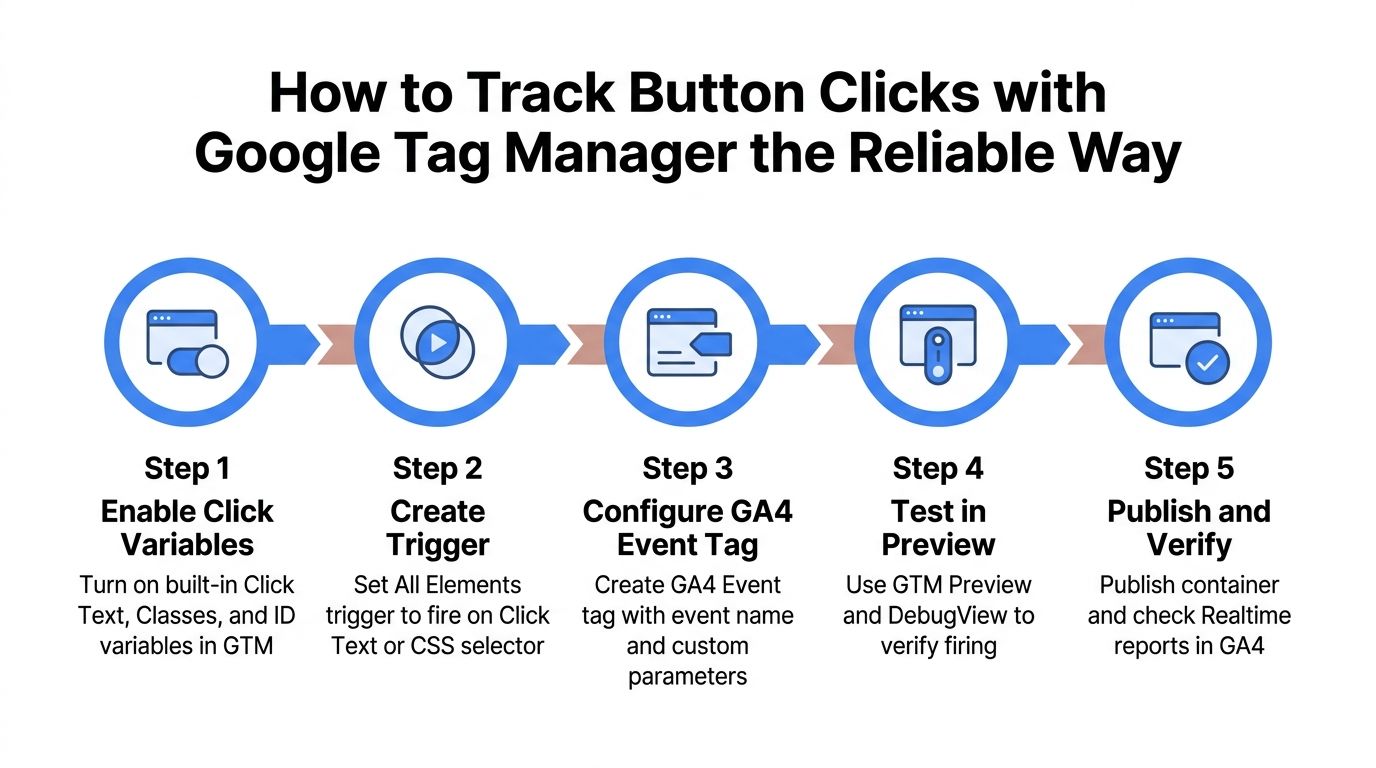
The GTM workflow
- In Variables, enable built-in click variables such as Click Text, Click ID, Click Classes, Click URL, and Click Element.
- Create a Click, All Elements trigger. Start broadly while inspecting the available values in Preview mode.
- Refine the trigger using a stable condition. Examples include
Click URL contains /contact,Click Text equals Get a quote, or a fixed Click ID. - Create a GA4 Event tag with an event name such as
cta_click. - Map parameters such as
cta_label = {{Click Text}},cta_location = pricing_section, andpage_path = {{Page Path}}. - Test in GTM Preview and GA4 DebugView before publishing.
The first usable selector isn't always the safest selector. Auto-generated IDs and generic CSS classes often change during redesigns, while a deliberate HTML ID, an anchor href, or an ARIA label usually communicates a more stable contract between development and measurement.
The Google Tag Manager setup guide from Virtual Tour Easy can help teams establish the container before configuring the event.
Choosing a stable filter
| Trigger Filter | Stability | Best For | Watch Out For |
|---|---|---|---|
| Fixed Click ID | High when developer-controlled | A unique CTA with a permanent identifier | IDs generated by a component framework |
Click URL contains /contact |
High for real links | Contact and quote destinations | JavaScript buttons with no href |
Click Text equals Get a quote |
Moderate | A unique visible label | Translation, whitespace, nested spans |
| Stable ARIA label | High when maintained | Accessible controls and icon buttons | Missing or changing accessibility attributes |
| Generic CSS class | Low to moderate | A temporary diagnostic trigger | Shared classes and redesign changes |
Broad-to-narrow refinement prevents over-firing. First confirm that GTM sees the click and inspect the variables. Then add one stable condition, test the intended control, and test a nearby non-target control. If the trigger relies on a child span rather than the button itself, use the clicked element relationship or a suitable CSS selector so both the label and button surface are covered.
Testing Debugging and Fixing Common Tracking Failures
A published tag isn't proof of a working measurement system. The event must fire once, contain the expected values, arrive in GA4, and remain accurate when the visitor follows the actual navigation path.
Start in GTM Preview. Click the target control from the page, inspect the event, and confirm the trigger condition and parameter values. Then use GA4 DebugView to verify that cta_click arrived with the expected context. Test both a normal click and a click on any nested icon or span inside the control.
Failure patterns that need special handling
- Single-page application route changes: A route change may replace the button without reloading the page. Test after internal page updates and confirm that listeners still recognize the newly rendered element.
- Modal triggers: A click can open a modal without changing the URL. Track the opener, not merely the form view, and check whether the component fires more than once during rerenders.
- Dynamic elements: Buttons injected after page load may not exist when a direct listener attaches. Delegated listeners or GTM conditions based on stable attributes can handle them more effectively.
- Iframes: A parent-page GTM container generally can't inspect clicks inside a separately loaded iframe. The embedded experience needs its own tracking implementation or a deliberate communication method between the iframe and parent page.
- JavaScript-driven actions: A button may trigger an action through script and expose no
href. Use a stable ID, data attribute, ARIA label, or application-level event rather than depending on Click URL. - Visible text mismatch: CSS, nested spans, icons, and localization can make displayed text differ from the DOM value available to GTM. A fixed identifier is safer for critical actions.
A missed event and a duplicate event require different fixes. Missing data usually points to reachability, selector, consent, or load timing. Duplicate data usually points to repeated listeners, rerendering, or multiple tags attached to the same interaction.
Single-page applications and modal components deserve duplicate-fire checks because a component can mount repeatedly while retaining tracking logic. Blocking rules, tag sequencing, and one clearly owned trigger can prevent two tags from reporting the same click. The conversion tracking setup guidance from Virtual Tour Easy is relevant when a click should connect to a later lead or conversion action.
Before publishing, verify the event on desktop and mobile, with navigation enabled, with the modal opened and closed, and with the browser console free of JavaScript errors. Register the custom parameters as event-scoped definitions afterward, or the data may remain visible in debugging while absent from the reports the team uses.
Viewing Your Button Click Data and Keeping It Useful at Scale
GA4 button data becomes useful when it answers a business question, not when the event count increases. Realtime and DebugView help confirm that the implementation works. Standard Reports and Explorations help compare the controls after the data has been processed and the parameters have been registered.
A useful Exploration might place cta_label, cta_location, and page_path beside event counts, then segment the results by device category, landing page, or traffic source. That structure can reveal whether “Book a Tour” performs differently in a hero section than in a sticky footer, or whether a tour hotspot produces meaningful engagement before a lead form appears.
Keep the taxonomy compact
Use a small set of event names:
cta_clickfor calls to action.button_clickfor broader controls that aren't necessarily conversion-oriented.- A separate event only when the action has a materially different meaning, such as
tour_startorhotspot_click.
Parameters should carry the variation. This prevents reporting from splitting one interaction category across many nearly identical event names. It also makes a new page easier to instrument because the implementation can reuse the existing event contract.
A maintenance routine should be lightweight but deliberate:
- Review important buttons after each redesign or component-library change.
- Test the main CTA on mobile and desktop.
- Compare GTM Preview values with the labels and locations visible on the page.
- Check for duplicate events after SPA route changes and modal rerenders.
- Archive unused tags and triggers so future editors don't attach overlapping logic.
- Document the event name, parameter meanings, expected values, and owning team.
For a virtual-tour business, button clicks are only one part of attribution. Virtual Tour Easy supports GA4 and GTM integrations, custom event tracking for tour interactions, built-in tour analytics, and lead capture forms, allowing teams to connect CTA activity with behavior inside an embedded or shared tour. The platform is one option for organizations that need to measure both the page-level click and the subsequent tour engagement.
A reliable setup therefore has two layers. The first captures the interaction consistently. The second preserves enough context to explain what happened and supports decisions about placement, messaging, traffic quality, and lead flow.
Connect button clicks to richer tour behavior with Virtual Tour Easy, which supports immersive 360° tours, GA4 and GTM integrations, tour analytics, and lead capture forms. Visit the platform to create or publish a tour, define a reusable event taxonomy, and test the complete path from CTA click to qualified inquiry.