A property photographer has captured a bright living room, a hotel has a clean phone gallery of its lobby, or an agent has a native iPhone panorama ready to publish. The problem appears at the upload stage. A wide image may look panoramic, yet a virtual tour platform can still reject it, display severe stretching, or show an empty ceiling and floor.
That confusion sits at the center of iPhone 360 photos. An iPhone can create useful wide panoramas, and third-party tools can assemble or generate spherical scenes, but those outputs aren't interchangeable. Professional results depend on understanding the difference, choosing the right capture method, and treating post-production and tour delivery as part of the photography workflow.
Table of Contents
- Native Panorama Mode Versus True 360 Spheres
- Physical Capture Techniques for Spherical Scenes
- Selecting the Right Third-Party Stitching Apps
- Converting Standard Photos Into 360 Scenes With AI
- Building Interactive Tours in VirtualTourEasy
- Optimizing 360 Assets for Modern Viewing Ecosystems
Native Panorama Mode Versus True 360 Spheres
An agent can capture a bright living room in Pano mode, upload the file to a tour platform, and discover that the result does not support room navigation. The image may look wide on a listing page, yet it is still a flat panorama rather than a complete spherical scene.
The iPhone Camera app's Pano mode doesn't create a complete spherical 360 photo. It stitches frames across a horizontal sweep into a broad, flat composite. A true 360 image uses an equirectangular projection to represent the environment around the camera, including the ceiling and floor, so viewers can look in every direction within a compatible viewer.
Apple added panorama capture to the native Camera app with iOS 6 in 2012, making it available without third-party software on the iPhone 4S, iPhone 5, and fifth-generation iPod touch, as documented by DPReview's overview of iPhone panorama apps. The basic workflow remains familiar: open Camera, select Pano, hold the phone steadily, and follow the arrow. That convenience explains why property agents often treat the output as tour-ready.
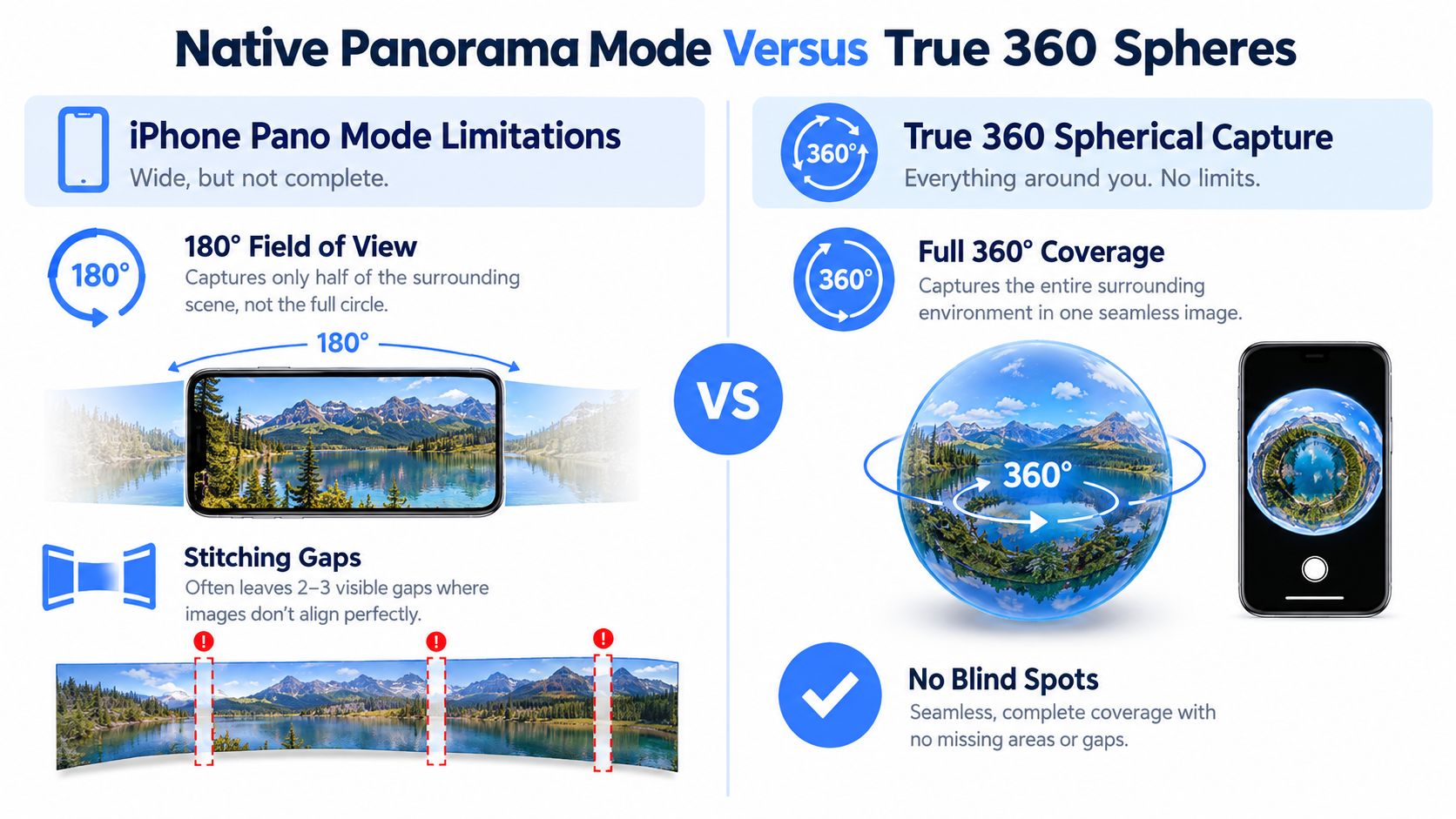
What the native camera actually captures
The native mode is commonly described as a 240-degree sweep, based on this iPhone panorama photography guide. It works well for listing images, social posts, and room documentation. It can also provide source material for AI conversion or other post-capture processing, but the original file still excludes part of the scene.
That missing coverage matters in real estate and hospitality. A flat panorama can present a kitchen or lobby in one composition, but it cannot independently show behind the camera, above the lens, or below it. A virtual-tour viewer expects a projection wrapped around a central viewpoint. Uploading a conventional panorama may therefore create stretched edges, blank areas, or an awkward viewing experience.
For the native capture steps, use this guide to taking a panoramic picture with an iPhone. Choose Pano when a wide flat image meets the publishing requirement. Choose a spherical workflow, followed by suitable conversion and tour integration, when viewers need navigation or an interactive property experience.
Practical rule: A wide panorama is a source image. It is not automatically a 360 sphere.
Physical Capture Techniques for Spherical Scenes
Once a flat panorama is ruled out, the physical capture process becomes less about pressing the shutter and more about controlling geometry. A phone-based spherical workflow generally combines multiple overlapping frames, then asks software to align them into a single scene. Every small change in the phone's position can create a seam, especially where a wall meets a door frame or a countertop.
A practical workflow uses 6 to 12 overlapping captures with roughly 30% to 50% overlap, as described in Nimb's guide to taking 360 pictures on an iPhone. The phone should rotate around the camera lens, not around the operator's body. That distinction matters because moving the lens through space changes the viewpoint between frames and creates parallax.
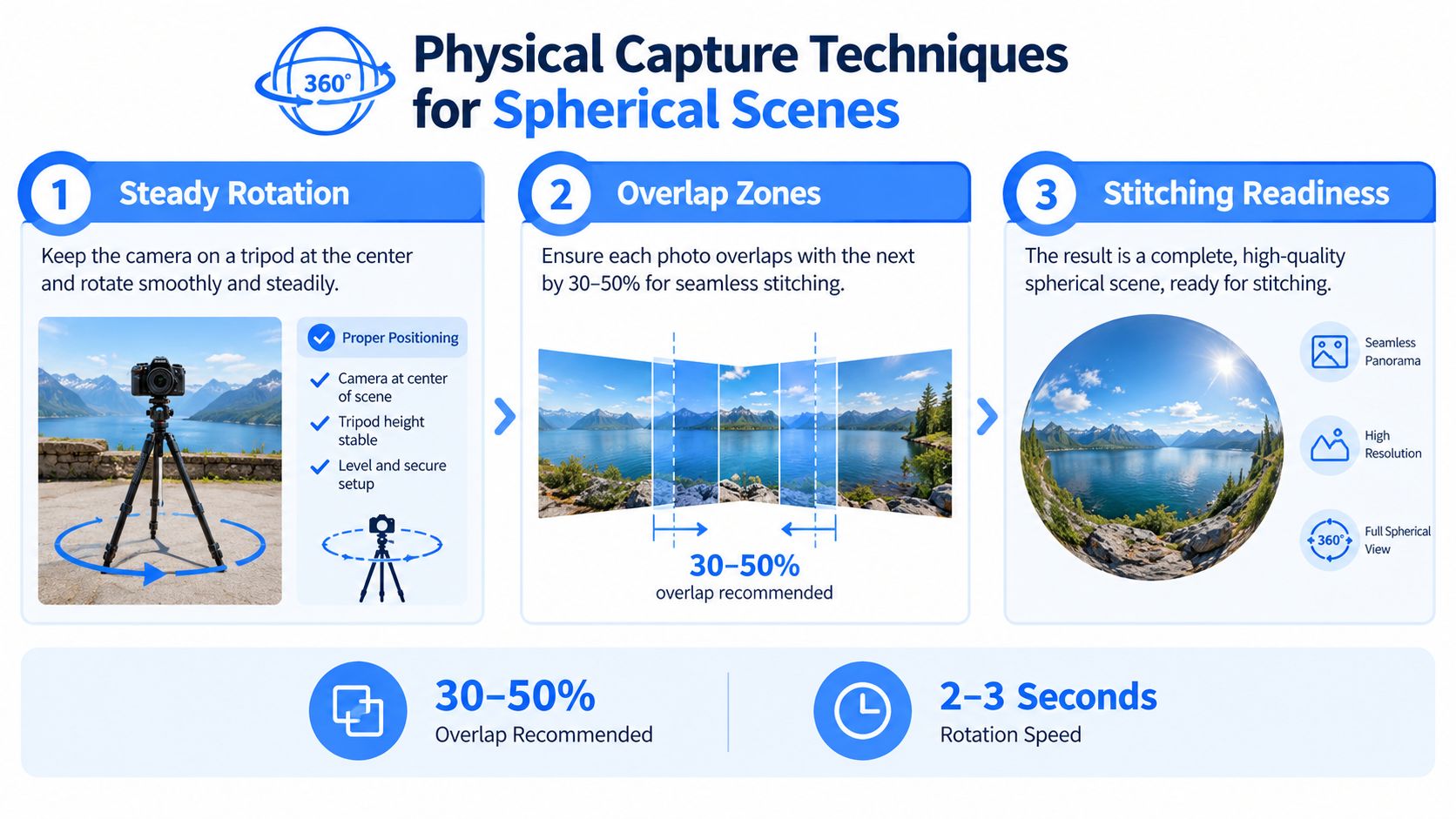
A repeatable capture routine
A stable tripod or monopod helps, but equipment doesn't solve poor rotation technique. Operators should keep the phone close to the rotation axis, maintain a consistent height, and avoid leaning forward or stepping sideways during the sweep. Interior scenes should be cleared of loose cables, reflective distractions, and people who might move between frames.
The capture sequence works best when the operator:
- Locks exposure and focus: AE/AF lock prevents the phone from changing brightness or focus as the lens passes windows, lamps, and darker corners.
- Keeps the pace deliberate: Guidance for phone-based 360 capture recommends about one frame every 2 to 3 seconds, or approximately 15 to 20 degrees per step, according to Travvir's phone 360 photography guidance.
- Maintains overlap: Each frame should share enough recognizable detail with the previous frame for the stitching software to identify matching edges.
- Controls movement: Static rooms are safer than occupied spaces. Moving guests, agents, or residents can appear as ghosted forms, missing limbs, or partial bodies.
Portrait orientation is often more practical for a panorama-style sequence because it preserves more vertical information for the eventual sphere. Bright windows and dim interiors remain difficult, so the scene should be assessed from every direction before capture rather than metered only toward the primary subject.
Phone hardware still influences the starting material. A resource covering iPhone 11 Pro photo performance can help operators understand what an older supported device may contribute before they plan a paid property shoot. The final sphere won't become professional because the source phone has a strong camera. Alignment, light consistency, and a clean room usually matter more than a casual increase in camera specifications.
Selecting the Right Third-Party Stitching Apps
Third-party software fills the gap between the iPhone's wide composite and a true spherical asset. The right choice depends on whether the priority is guided capture, automated stitching, manual correction, or fast delivery. A guided app can reduce operator error by showing the next capture position. A more flexible stitching workflow may give better control over difficult architecture, but it also demands more quality assurance.
The most important selection criterion is the output, not the app's capture screen. The exported file should be recognized as a 360 image by the intended viewer, preserve a sensible projection, and retain the metadata needed for spherical playback where the destination platform relies on it. A file that looks like a stretched rectangle in a browser may still contain useful pixels, but it isn't ready for a client-facing tour.
Match the app to the assignment
For a quick hotel walkthrough, a guided capture app with automatic alignment can be a sensible compromise. It helps a staff member follow a repeatable sequence without learning a desktop stitching workflow. For high-value residential interiors, a tool that supports exposure consistency, seam review, and clean export deserves more attention than an app focused only on speed.
A creator evaluating iPhone 360 photo apps should check:
- Capture guidance: Does the app show the next angle and warn about missed positions?
- Stitch review: Can the operator inspect door frames, railings, tiles, and other straight lines before delivery?
- Projection handling: Does the export use a proper equirectangular layout rather than a standard panoramic rectangle?
- Metadata support: Does the file remain identifiable as a spherical image after editing, resizing, and upload?
- Destination testing: Does the output behave correctly in the chosen tour builder, web embed, mobile browser, and spatial viewer?
Bright Shot's explanation of iPhone 360 photography highlights the mistake that continues to undermine many tutorials: native Panorama mode and true spherical capture are treated as if they're the same thing. They aren't. True 360 images generally require third-party capture or stitching, and an app should be judged by how reliably it produces the final projection.
The panoramic photos app guide can help teams compare app-based approaches before committing to a workflow. For client work, the winning option is usually the one that creates fewer corrections, not the one with the most filters or the shortest capture prompt.
Converting Standard Photos Into 360 Scenes With AI
A client asks for a virtual tour after the photo shoot is already over. The room is booked, the crew is gone, or the site is still mid-renovation. In those cases, AI conversion can turn a standard iPhone photo into a usable 360-style scene.
The workflow starts with a flat image. AI reads the visible walls, furniture, finishes, lighting, and perspective, then generates or extends the areas the camera never captured. That output can be wrapped into an immersive projection for a viewer. It does not recover real photographic detail from behind the camera. It is a generated interpretation, and that difference should decide where the asset belongs.
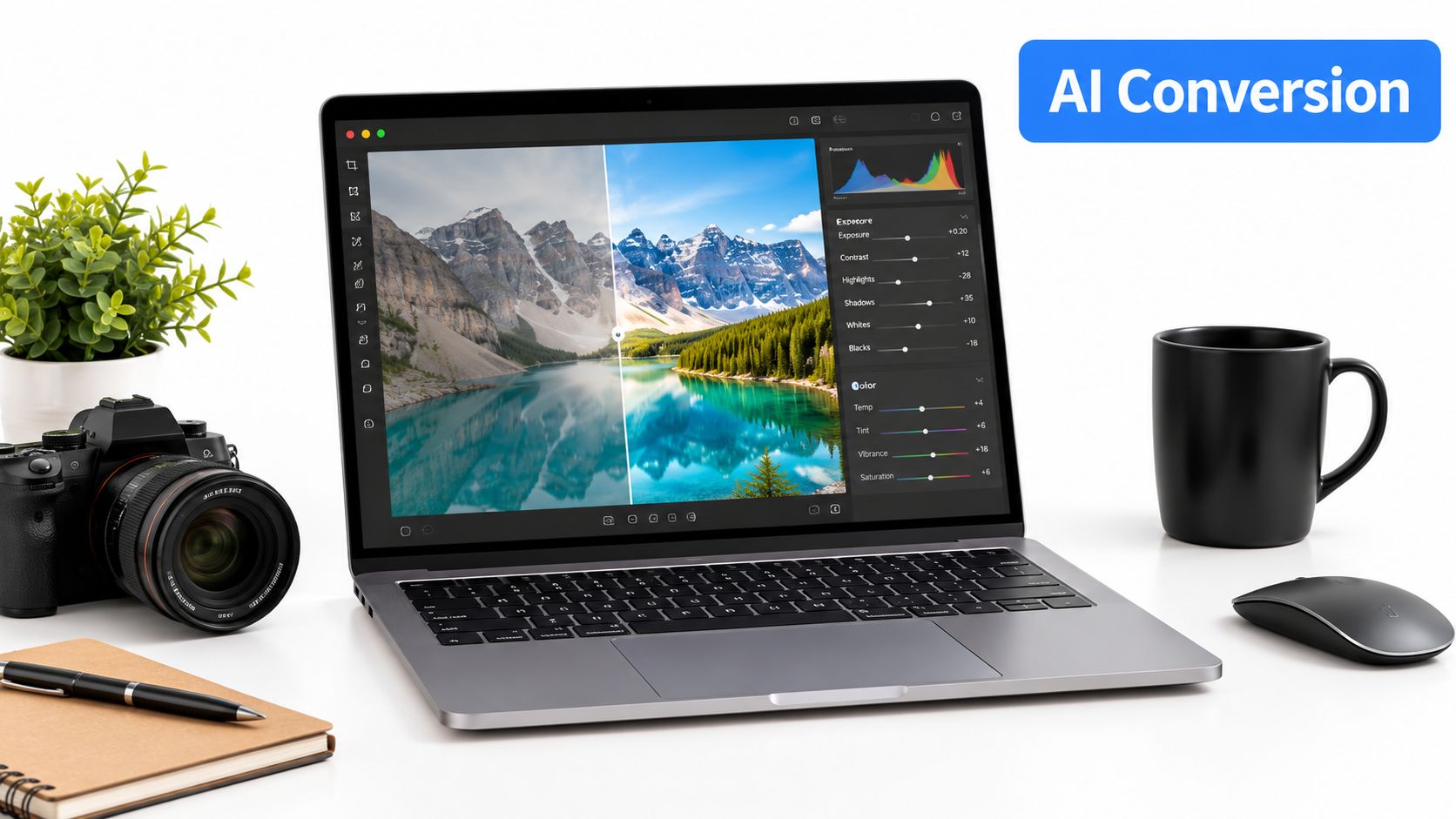
Where AI conversion works well
AI-generated extension fits concept presentation, early-stage marketing, internal approvals, and rapid tour prototyping. A real estate team can use existing room photography to build a navigable draft. A hospitality marketer can map out the order of spaces before scheduling a dedicated spherical shoot. An architect can show the intended feel of a room even when the site is not ready for a full capture.
A practical workflow usually looks like this:
- Choose the cleanest standard photo, ideally one with an uncluttered composition and even lighting.
- Upload it to an AI photo-to-360 tool.
- Review the generated ceiling, floor, and side areas for geometry that looks wrong.
- Fix visible artifacts before adding the scene to a tour.
- Label the scene clearly if the generated areas could change how a buyer or guest reads the space.
The broader market context points in the same direction. A 2025 report valued the global 360-degree camera-for-phone market at $0.86 billion and projected it to reach $1.90 billion by 2034. That does not mean every AI-generated scene will satisfy a professional client, but it does show growing interest in phone-based and software-assisted immersive workflows.
Where a real capture remains necessary
AI should not invent structural details for a high-stakes property presentation without review. It can misread mirrors, windows, staircases, artwork, and repeating textures. It can also extend a room in a way that looks plausible from one angle and falls apart when a visitor turns toward the generated area.
For final real estate or hospitality delivery, teams need to separate documentary accuracy from visual communication. A dedicated spherical capture or carefully stitched phone sequence is the stronger choice when the viewer needs to inspect the actual space. AI conversion is the practical shortcut when speed, access, or a previsualized environment matters more than literal coverage.
Building Interactive Tours in VirtualTourEasy
A standalone 360 image gives viewers a viewpoint. A useful tour gives them a path. The builder should therefore be treated as an information layer, not just a publishing destination. Each room needs a logical connection to the next, and each interactive element should answer a question that a prospective buyer, guest, student, or client might otherwise ask.
The workflow begins with importing the completed spherical files. Existing 360 images and AI-generated scenes can be placed into the visual editor, where the operator arranges them as separate locations. A clean naming system, such as “Entrance,” “Kitchen,” “Suite,” or “Meeting Room,” makes the project easier to maintain when several people contribute.
Turn scenes into a guided experience
Scene links should follow the way a visitor naturally moves through the property. A residential tour might begin at the entrance, move through the main living area, and then branch toward bedrooms or outdoor space. A hotel tour can connect the lobby to a guest room, amenities, dining areas, and event facilities without forcing viewers to search for the next destination.
Hotspots add context without covering the scene with text. Useful placements include:
- Feature markers: Identify appliances, finishes, accessibility details, or architectural elements.
- Navigation points: Give the viewer a clear route to the next room or floor.
- Information panels: Explain room dimensions, service details, booking information, or renovation notes.
- Lead forms: Capture an enquiry while the visitor is already examining a relevant space.
- Media links: Add floor plans, menus, videos, brochures, or external booking pages where they support the decision.
Custom starting views matter because the first frame shapes the viewer's interpretation. The opening angle should show the room's strongest visual feature, avoid a blank wall, and make the next navigation choice obvious. On a property listing, that might mean facing the living area rather than the entry corridor. On a hotel tour, it might mean presenting the reception desk or the most distinctive amenity.
For broader property presentation planning, Vancouver real estate photography tips from Jacky Levi, Vancouver Realtor, offers useful context on preparing listing imagery before capture and publication. The same preparation principles apply to spherical scenes, where clutter and harsh lighting remain visible from every direction.
The free 360 virtual tour guide can also help teams map out a low-friction publishing workflow. Before sending a link to a client, operators should test every hotspot, confirm that forms submit correctly, and open the tour on both a phone and a desktop browser.
Optimizing 360 Assets for Modern Viewing Ecosystems
A tour can be technically correct and still perform poorly for viewers. The same asset may appear inside a desktop browser, a mobile web embed, a social preview, or an immersive headset workflow. Each environment exposes different weaknesses, including slow loading, unreadable labels, incorrect initial angles, or a file that opens as a flat rectangle instead of an interactive sphere.
Recent app developments point toward a broader ecosystem than capture alone. An App Store release from 2026 turns 360 photos already stored in a user's library into an immersive sphere, while an iPhone app from 2025 pairs capture with Vision Pro viewing, as described on the Teleport 360 Camera App Store listing. These dated developments suggest that creators increasingly need to think about device-linked libraries and spatial viewing, not only about taking the original image.
A practical quality check
Before publication, the operator should inspect the complete delivery chain:
- Projection: Open the file in the intended viewer and confirm that the scene wraps naturally without an obvious flat-image treatment.
- Seams: Check straight architectural edges, reflective surfaces, door frames, and patterned floors.
- Verticals: Confirm that walls and furniture don't lean because the phone was tilted during capture.
- Lighting: Look for exposure bands between frames, especially near windows and bright fixtures.
- Metadata: Export a test copy and verify that the destination still recognizes it as a 360 asset after resizing or editing.
- Mobile loading: Test the published tour on a cellular connection and reduce file weight when the first scene takes too long to appear.
- Controls: Check that navigation markers and info panels remain legible on a small screen.
- Spatial viewing: If a client expects headset use, test the same link or file in the target spatial environment rather than assuming browser compatibility.
Delivery standard: The asset isn't finished when the stitching looks clean. It's finished when the intended viewer can open, understand, navigate, and act on the tour.
File optimization requires restraint. Excessive compression can soften text, furniture edges, and low-contrast details, while oversized files can create friction for mobile visitors. A sensible workflow keeps a high-quality master, creates a delivery version for the tour, and checks the published result instead of judging only the exported file on a large editing monitor.
The final review should also include analytics and lead capture where those tools are part of the project. A hospitality team may need to know which spaces attract attention. A brokerage may want enquiries associated with a particular property tour. Those measurements become useful only when the scenes, hotspots, forms, and tracking have been tested as one experience.
Virtual Tour Easy offers AI photo-to-360 conversion, uploads for existing spherical files, and a visual builder for connecting scenes with hotspots, info panels, and custom starting views. Teams working with iPhone 360 photos can visit Virtual Tour Easy to turn individual scenes into shareable interactive tours for real estate, hospitality, and other spaces.