A HAR file is a UTF-8, JSON-formatted HTTP Archive log that records the requests a browser sends and the responses it receives while loading a page. Support teams use it to diagnose page-loading failures, failed API calls, broken media, redirects, and slow components with evidence that's far more precise than a screenshot.
That precision matters when a visitor reports a blank area, a spinning loader, or a button that does nothing. The screen shows the symptom. The HAR shows which resource failed, never arrived, arrived in the wrong form, or took too long.
Table of Contents
- Why HAR Matters When a Page Breaks
- Checking Which HAR You Mean
- Understanding the HTTP Archive Structure
- Recording a HAR in Browser DevTools
- Inspecting Requests and Responses
- Using HAR Viewers for Deeper Analysis
- Troubleshooting Common HAR Diagnosis Problems
- Sharing HAR Files Safely
Why HAR Matters When a Page Breaks
A product page can look almost finished while one essential piece is missing. The headline renders, the price appears, and the buy button works, but the main image stays blank or an embedded tour never starts. A screenshot proves something looks wrong. It doesn't show whether the browser requested the asset, received an error, followed a redirect, or got blocked before the file arrived.

That's the practical answer to What is the HAR in web debugging. It's a structured trace of the exchanges used to build the page, not the page itself. Each exchange gives investigators a starting point for separating a visual bug from a delivery problem.
Two Jobs in One File
- Reproducing the sequence: The file preserves what happened during a specific visit, including the order of network activity around the failure.
- Preserving evidence: A developer can review that activity later, outside the original browser session, instead of relying on memory or a cropped image.
A screenshot shows the result. A HAR helps explain how the browser got there.
Developers, support teams, site owners, and marketers all encounter this format because modern pages depend on scripts, images, APIs, analytics, fonts, and embedded media from several places. A failure in one request can break an interaction without breaking the whole layout. Readers checking cross-browser behavior can pair the trace with practical browser compatibility checking guidance to confirm whether the same request behaves differently in another browser.
The mental model is simple. The webpage is the finished room. The HAR is the delivery record for everything brought into that room, including items that arrived damaged, went to the wrong address, or never showed up.
Checking Which HAR You Mean
A support ticket lands asking for "a HAR of the failed login." One engineer exports a browser network log in five minutes. Another searches the acronym, lands on a Houston property portal, and loses the morning. Same three letters, completely different files.
In web development, HAR means HTTP Archive. Elsewhere the same letters can stand for Human Accelerated Region, Haryana, Height Above Runway, Hazard Analysis Report, or Houston Association of REALTORS®, as the Checkpoint HAR context summary reflects in its support guidance.
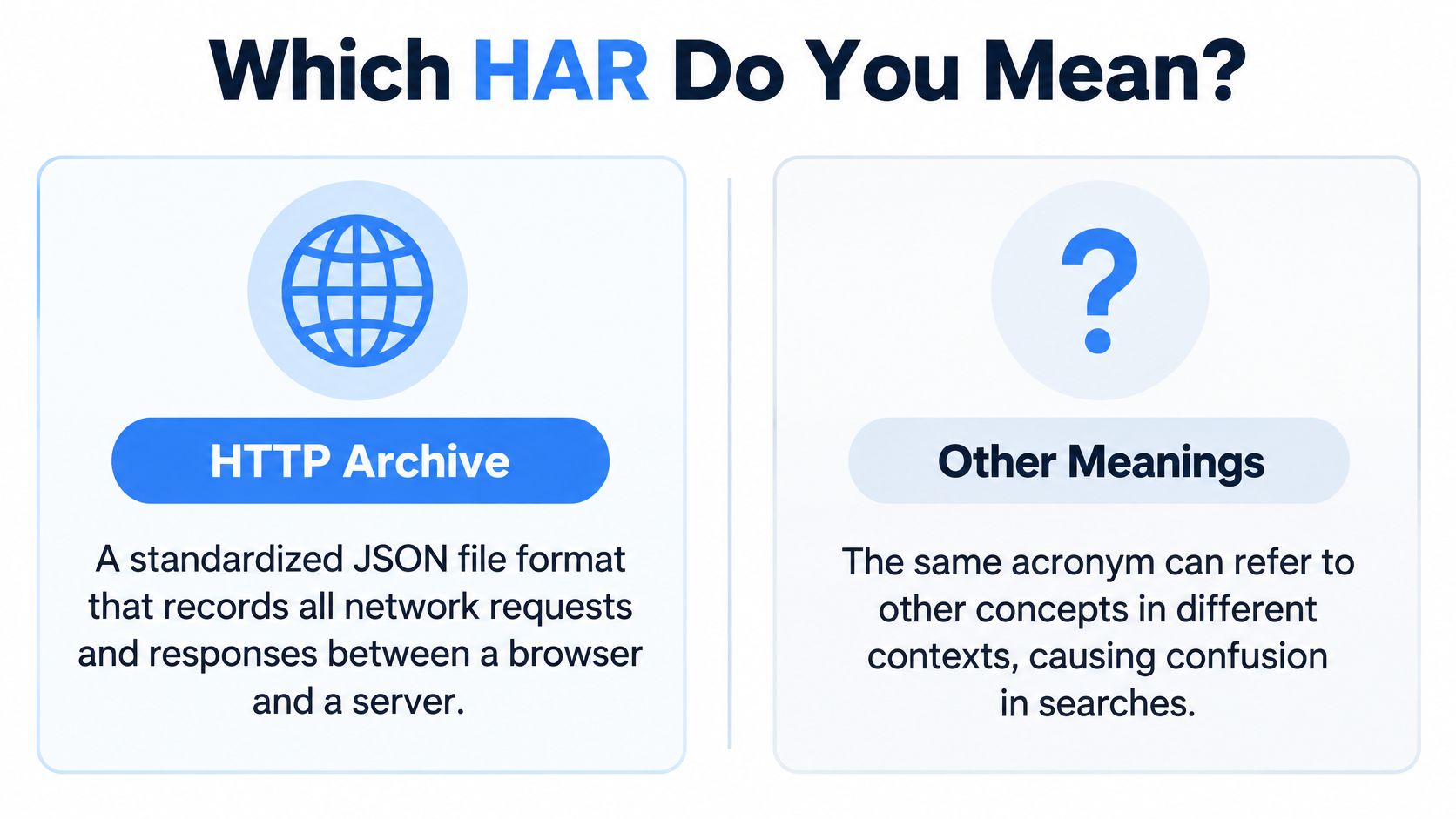
Context settles the meaning faster than any acronym database, and the clues sit in the surrounding words.
| Where "HAR" appears | What it likely means | Quick check |
|---|---|---|
| Support ticket, DevTools, or page-speed conversation | HTTP Archive, a network log | Look for "requests," "export," or "page load" nearby |
| Texas property discussion | The Houston association or its portal | Look for "listings," "MLS," or market names |
| Aviation, genetics, or safety document | A domain-specific term | Read the defining sentence before acting on anything |
Getting this wrong costs time in both directions. Search genetics papers when you needed a network trace, and the bug stays open another day. Export browser data when the requester meant a hazard report, and you have handed out sensitive network details nobody needed.
The Houston property meaning is substantial, not a minor naming overlap. The Houston Association of REALTORS® was founded in 1918 and represents over 50,000 members, according to the HAR press kit and organizational overview, and its property portal has nothing to do with browser logs.
One habit prevents the mix-up: match the acronym to the tool in front of you. When the request mentions a browser, a capture, or DevTools, HAR means HTTP Archive.
Understanding the HTTP Archive Structure
A page's HAR file is like a folder of browser-server exchanges. Each exchange is an entry: the browser sends a request, and the server returns a response. Timing details record how long parts of that exchange took.
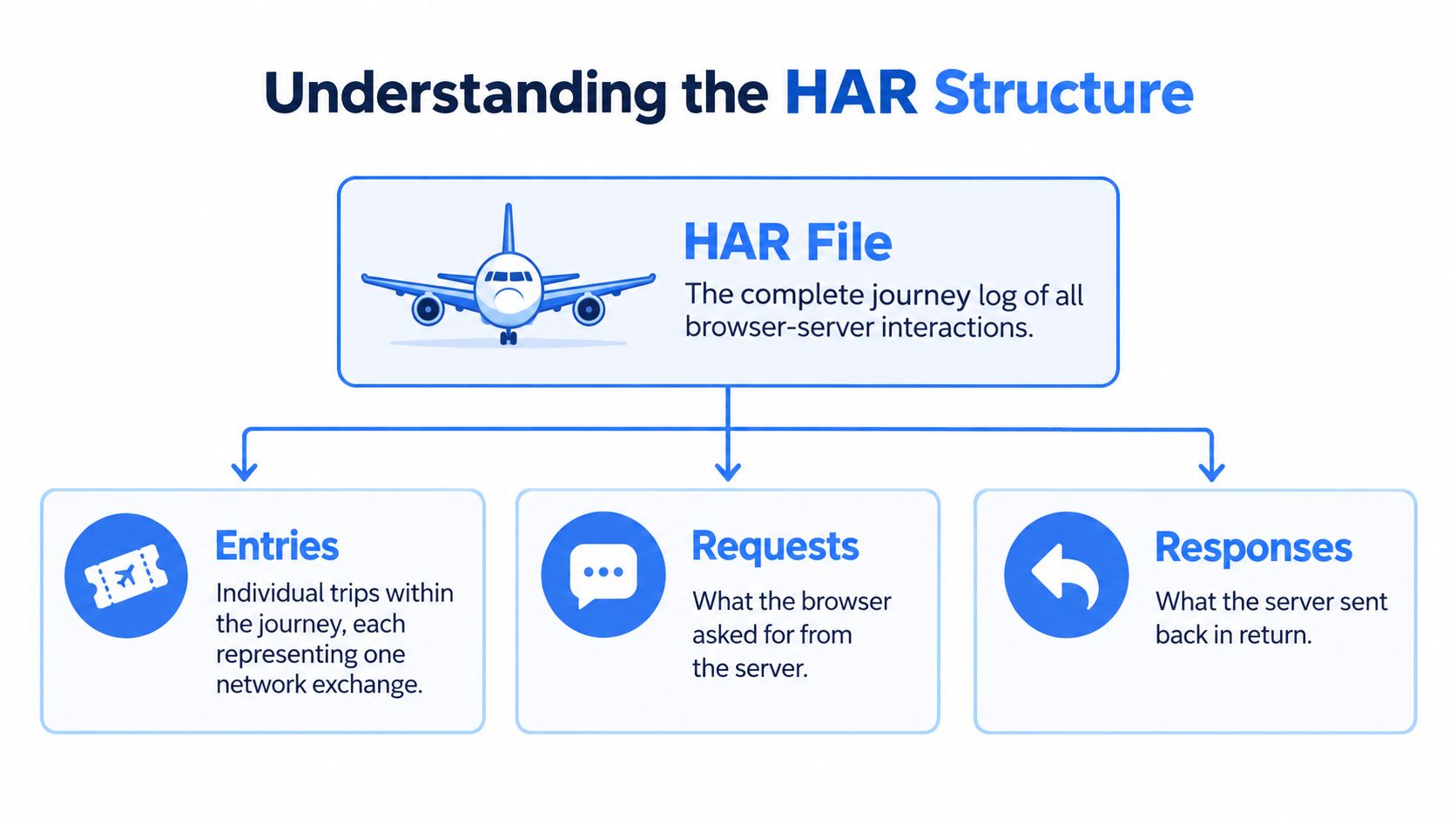
The HTTP Archive format specification defines the file's main parts: a version identifier, information about the tool that created it, optional page records, and an array of entries. You rarely need every field. Start with the ones that can answer your question.
For a blank image on a gallery page, inspect the image request's URL, status, and response type. If login fails, look at the relevant request and response headers, cookies, redirects, and API response. For a slow gallery, compare the timing of larger or delayed resources with the rest of the page.
Each entry contains several clues:
- Method and URL show what the browser requested and where it sent the request. An unexpected domain or missing query parameter can point to a routing or configuration problem.
- Status indicates how the server responded. A 4xx status usually signals a client-side or access issue; a 5xx status indicates a server error.
- Headers and cookies carry information about authentication, caching, content type, and other instructions exchanged between browser and server.
- Query parameters and bodies can contain search filters, form submissions, API data, or returned content.
- Redirect and connection details help trace where a request went and how it connected.
- Timing fields show how long different parts of a request took, which helps locate delays.
Treat the entries like a sequence of receipts, not a verdict. A HAR can show that the browser received an error, but it cannot establish why the server produced it. Use it to narrow the investigation; server logs, application monitoring, or code review may be needed to confirm the cause.
Recording a HAR in Browser DevTools
A login loop begins only after a user submits the sign-in form. To capture it, start recording just before submitting, then stop once the browser returns to the login page. The trace will focus on the action that reproduces the issue instead of filling with unrelated browsing activity.
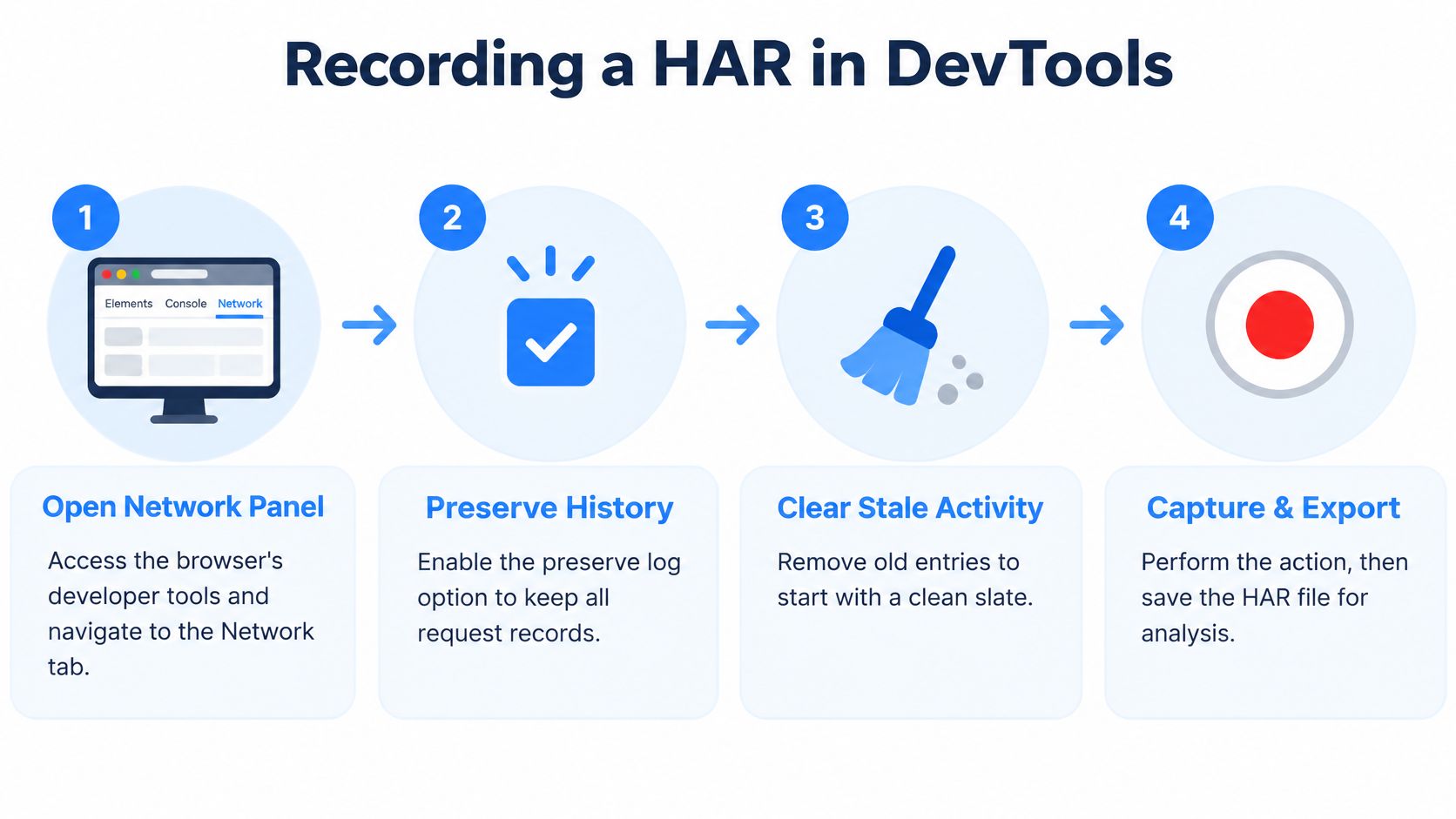
DevTools names and menu locations vary by browser, but the recording process follows the same sequence. Open the Network panel and prepare it before reproducing the problem:
- If the issue crosses a page reload or redirect, enable the option to preserve the network log. Otherwise, earlier requests may disappear when the page changes.
- Clear existing entries so the capture begins with a clean list.
- Perform the specific action that fails, such as submitting a form, opening a gallery image, or starting a video.
- Stop once the failure appears, then export the HAR using the browser's available save option.
A controlled setup can make the trace easier to interpret. A clean browser profile or test account may reduce interference from extensions and avoid capturing personal browsing data. Record the page address, time, browser, device, account type, and reproduction steps separately so a support team can match the capture to other records.
Keep the original HAR unchanged, and review a copy before sharing. The recording should document one reproducible failure; deciding which requests matter comes later. A focused capture is easier to work with and less likely to include unrelated sensitive information.
Inspecting Requests and Responses
A panorama appears as a blank rectangle, but the page layout looks normal. Start with the image request: did the browser receive an error, a login page, or a file in a format the panorama viewer cannot display? Tracing that request is more useful than opening every entry in the HAR.
Filter or scan for failed statuses, a relevant domain, file type, or distinctive URL text. For a slow page, compare request durations and look for an entry that took much longer than its neighbors. A successful status does not guarantee useful content: the response may be empty, malformed, or unrelated to what the page needs.
Open a suspicious entry and follow the evidence:
- URL and method: Check that the request went to the expected endpoint and used the expected method and parameters.
- Request headers: Look for relevant authentication or cache directives. Avoid copying tokens or other sensitive values into a support ticket.
- Response headers: Check the content type, cache instructions, and any redirect destination. A JSON endpoint returning HTML, for example, may indicate an expired login session.
- Response body or preview: See whether the server returned an error, empty content, an unexpected page, or data that appears usable.
- Redirects and timing: Follow destinations when a request lands somewhere unexpected. Compare duration with nearby requests to see whether a single resource is delayed.
A second kind of symptom can be harder to spot: the page looks fine, but an analytics event is missing. Check whether the event request appears at all, then inspect its status and parameters. If the request is present, its payload can show whether the page sent incomplete event data.
Cached responses can also change what the browser requests on a repeat visit. For background on how browser and server caching affect those requests, see this overview of caching strategies.
Finish with a short evidence note: describe the visible symptom, the page action, the request, its status, and the field that supports your conclusion. This gives a support team something specific to test, rather than a general report that the page is broken.
Using HAR Viewers for Deeper Analysis
A customer sends you a HAR file after a checkout error, but you cannot reproduce the problem in your own browser. A HAR viewer lets you inspect that saved session without repeating the visit. DevTools is better for recording a fresh attempt; a viewer is useful for reviewing an exported trace or comparing separate attempts.
Choose a viewer based on the question you need to answer. To see whether two visits differ, look for tools that can compare requests and timing. To review a particular request, check that the viewer exposes its headers, redirects, response, and timing details. A viewer may present or simplify fields differently, so a detail that is missing from its display may still exist in the HAR file.
Before opening a real trace, check how the viewer handles it. Some tools process files locally; others upload them. Use local or organization-approved tooling for sensitive traces, and test unfamiliar viewers with a non-sensitive sample first. Filtering by status, domain, URL, or request type can also make a large recording easier to examine.
A viewer helps organize evidence; it does not decide what the evidence means. For a nontechnical audience, report the user impact, the relevant request, who should investigate next, and how certain the conclusion is. Keep the report focused on what the trace supports, rather than presenting every field in the file.
Troubleshooting Common HAR Diagnosis Problems
A panorama fails to load during a customer visit. The HAR shows a successful image request, but its response is an HTML sign-in page. That distinction points the investigation toward authentication or routing, rather than a missing image file.
Use the browser's experience to narrow the search, then inspect the relevant requests:
| What the user sees | What to check in the HAR | Possible explanation |
|---|---|---|
| A missing image or panorama | Request URL, status, and response content type | The file may be unavailable, redirected, or returned in an unusable format |
| API data does not appear | Endpoint, query parameters, status, and response | The request may be rejected, return no results, or provide an unexpected payload |
| The page keeps redirecting | Each redirect destination and status | Sign-in rules or routing may send the browser to the wrong page |
| One feature loads slowly | Timing for the requests that feature depends on | A particular resource may be delayed, rather than the whole page |
| A submitted action seems to disappear | Whether the request was sent, its method, and its response | The browser may not have sent it, or the server may have rejected it |
A request's status is only part of the diagnosis. A successful response can still contain the wrong content, such as a login page where an image or API result should be. Check the response type and, where available, the body before concluding that delivery worked.
Compare the suspicious request with a working visit, account, browser, or earlier recording. Differences in the URL, headers, status, or response can narrow the cause. A HAR records what the browser exchanged over the network; it cannot show server-side decisions that were never returned to the browser.
Redirects can point toward authentication rules, domain configuration, or secure-connection behavior. If a trace suggests a custom-domain issue, custom domain SSL setup guidance can help you check the surrounding configuration before changing page code.
Turn the Trace into a Focused Diagnosis
Start with one symptom and follow the request or requests tied to it. Classify what happened: did the request fail, redirect, return unusable content, or take too long? Compare it with a working example if one is available.
Then report only what the trace supports. For example: “After selecting the panorama, the browser requested /api/panorama; it returned status 401, and the image did not appear.” That gives the next investigator a reproducible action and a concrete network result, without presenting a suspected server cause as proven.
Sharing HAR Files Safely
A HAR file should be treated as a sensitive diagnostic artifact, not as an ordinary screenshot. Because it can preserve headers, cookies, request bodies, response content, and page data, it may also expose session cookies, authentication tokens, API keys, submitted form data, and personally identifiable information. The Google Cloud Support privacy best practices reinforce the need to handle diagnostic material carefully when working with support.
The most important misunderstanding is that removing a visible password makes the file safe. It doesn't. A session cookie or authorization token may still let someone act as the signed-in user. Sanitizing only obvious secrets can leave the most useful credential untouched.
Send the smallest useful diagnostic file, never an indiscriminate capture of an entire browsing session.
A Safer Pre-Sharing Workflow
- Use a test account: Reproduce the issue with a private test account or sanitized data whenever the problem allows it.
- Control the recording window: Start after sign-in when possible and stop before entering passwords, payment details, or unrelated personal information.
- Inspect the contents: Review URLs, headers, cookies, query parameters, request bodies, and response bodies for secrets or personal data.
- Redact carefully: Remove cookies, authorization fields, tokens, keys, and sensitive payload values from a copy, while noting that redaction happened.
- Use an approved channel: Send the file through the support portal or secure transfer method the receiving team specifies, not public chat or an open forum.
- Delete and revoke: Remove local and shared copies when they're no longer needed. If live credentials may have been exposed, end active sessions and rotate affected secrets through the relevant service.
Redaction requires judgment. Removing a header that caused the failure can also remove the evidence support needs. A safer approach is to coordinate with the receiving team, reproduce the issue in a controlled account, and disclose which categories were removed without revealing their values. If the team can't inspect the file confidently, it shouldn't send the file yet.
The complete decision path is now straightforward. Confirm which HAR the context means, record one focused failure, inspect the smallest set of relevant entries, compare evidence before naming a cause, redact sensitive material, and clean up afterward. That discipline keeps the HAR useful as a troubleshooting record without turning it into an accidental credential leak.
Readers who showcase properties, venues, campuses, or designed spaces can use Virtual Tour Easy to create immersive 360 degree tours from regular photos, existing panoramas, or text prompts, then share them through links and website embeds. When an embedded tour or page asset fails, the HAR workflow in this guide helps identify the request that needs attention, so visit Virtual Tour Easy to build a tour that's ready to test, publish, and share.