A hotel marketer approves a 360 photo in a desktop editor. The rectangular image looks tidy, the room seems balanced, and the floor patch beneath the camera barely draws attention. Then a guest opens the tour, turns toward the ceiling, and sees the light fixtures stretch. They look down, and the floor looks smeared. The file didn't change. The view did.
Viewing 360 photos means understanding what the flat image represents, how a viewer displays a slice of it, and whether people can move through that scene comfortably. A panorama can be visually polished and still fail as an interactive view. A reliable check considers the projection, the device, the network, and the needs of the person looking around.
Table of Contents
- Why a Flat Panorama Misleads You
- How to View 360 Photos on Each Device
- Choosing How to Share and Embed a Tour
- Making Viewing Work Without Constant Dragging
- Fixing Blur, Lag, and Bad First Views
- Publish One Space and Test It Today
Why a Flat Panorama Misleads You
The hotel marketer's mistake is easy to make: judging a spherical scene as though it were a regular wide photo. A common 360 source uses an equirectangular projection, which maps the whole sphere onto a rectangle. The viewer later turns that rectangle into a perspective view, the sort of view people expect when they look around a room. Those are different ways of seeing the same image, so a detail that looks fine in the flat file can look stretched in the viewer.
The geometry explains why. Equirectangular images place latitude lines at equal intervals on a rectangle, even though corresponding areas on a sphere don't have equal surface area. That mismatch creates stretching and redundant sampling toward the top and bottom. Research on 360 indoor imagery finds distortion is relatively limited from 0° to ±30°, increases beyond that band, and is greatest from ±60° to ±90° near the poles (research on equirectangular 360° imagery).
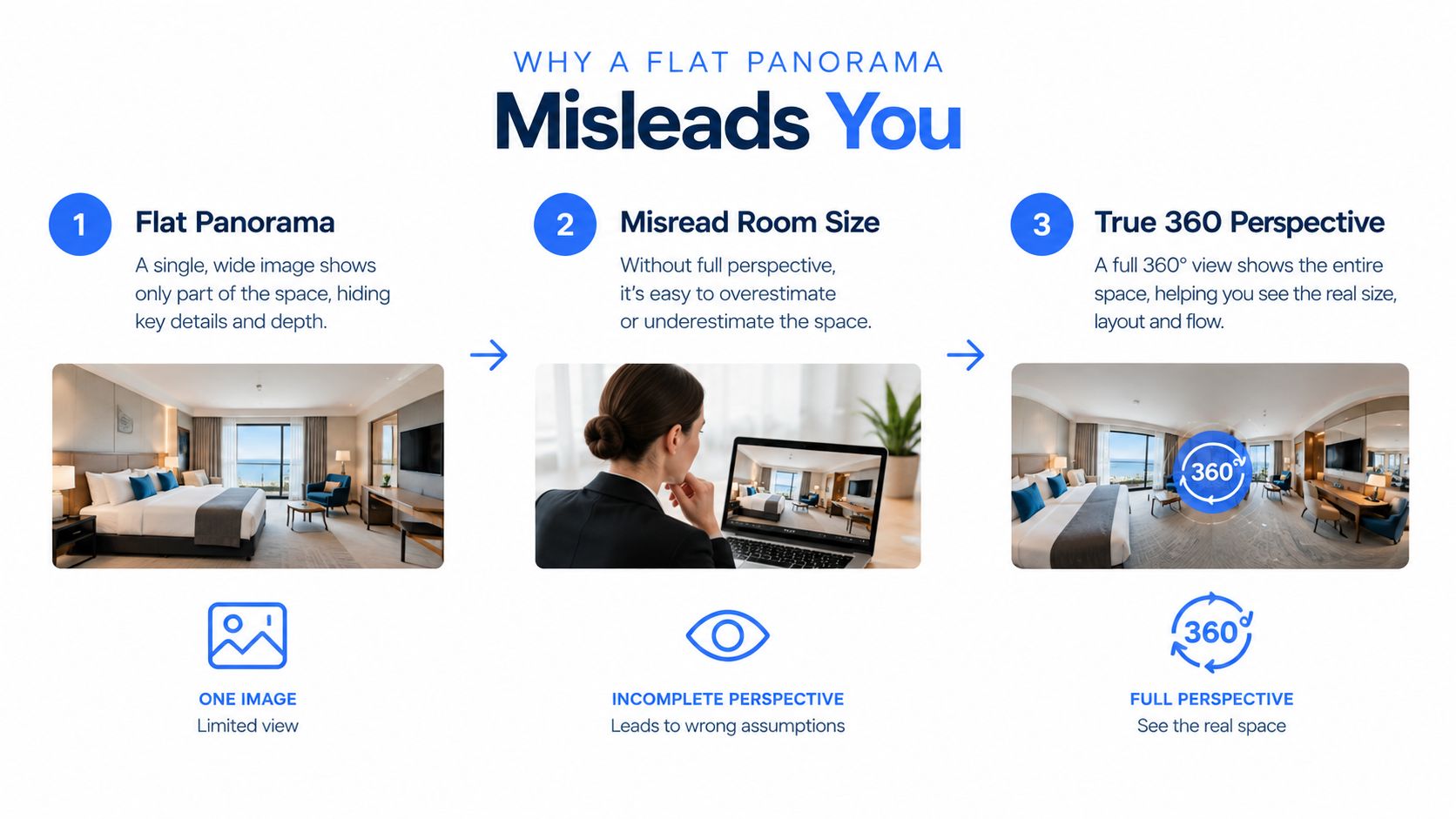
Check the sphere before you share it
Use this preflight before publishing a panorama:
- Confirm the shape: Check that the source image has a 2:1 width-to-height ratio. That's the expected format for a full equirectangular panorama.
- Inspect both poles: Review the nadir, the bottom of the sphere, and the zenith, the top. Look for a tripod, blank patch, seam, or awkwardly stretched detail.
- Protect important details: Keep text, faces, logos, room labels, and architectural features close to the equator, within approximately ±30° latitude where distortion is more limited.
- Preview in perspective: Open the image in a 360 viewer and check multiple headings and pitches. The flat file alone can't show you how a normal viewing window will render each area.
For a property or venue tour, test the default starting view, then turn toward the four cardinal headings. Check the scene with both desktop mouse navigation and mobile touch navigation. If the camera tripod or a blank nadir can't be avoided, a neutral patch or floor graphic may help, but it still needs to look natural in the interactive viewer.
Real estate teams refining how listing images present a home can also consult photography guidance for Maple Ridge sellers for practical photography context. For a plain-language explanation of how a panorama differs from a regular photograph, see what makes a view panoramic.
How to View 360 Photos on Each Device
A buyer opens the tour on a phone in a driveway, then opens it again on a laptop at work. The same panorama behaves like two different products because each device gives the sphere a different viewport, input method, and performance budget.
On desktop, test the view the way a first-time visitor will use it: drag with the mouse, try arrow keys or WASD if the viewer supports them, adjust zoom with the scroll wheel or on-screen buttons, then use the reset control after looking away. Run a keyboard-only check too: Tab should reach the viewer, focus should be visible, and the scene should still have a clear reset path. The opening frame should face the room's defining feature, such as the living area in a home or reception in a hotel, so the first viewport gives context before anyone moves the camera.
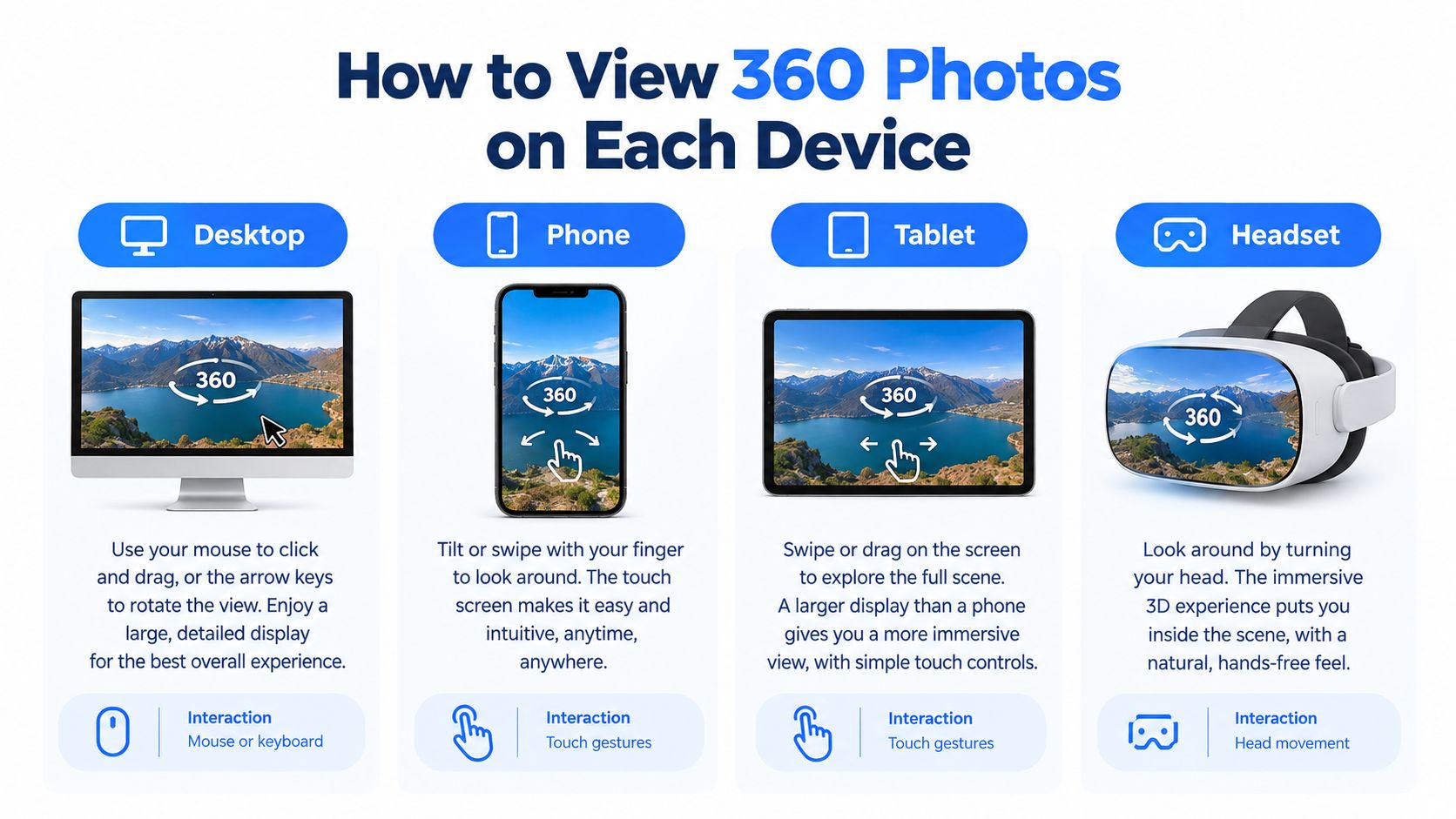
Match the controls to the screen
On phones and tablets, finger-dragging is the baseline check, with pinch zoom if the viewer offers it. Gyroscope steering can help in open space, yet it can also make the camera feel as if it is moving without consent when someone is sitting still, commuting, or opening the tour in a meeting. Give motion control an obvious toggle, respect reduced-motion settings, and keep drag input reliable when motion is off. If a portrait listing page keeps cropping the scene, lock orientation during the tour or make the default view work in portrait before asking the visitor to rotate.
A headset can feel closer to standing inside the room, but browser access should come first. Make sure the panorama opens, loads, and resets in an ordinary browser window before treating immersive mode as an extra; a browser-based VR viewing guide can explain where headset viewing fits. If continuous rotation causes discomfort, a stationary screen, floor plan, short video, or regular photo may communicate the space with less strain.
Device choice changes the frame rate as much as the control scheme. A 2025 web-based VR evaluation measured Android at about 45 FPS, mobile input latency at 63 ms, and a 28.4 MB asset bundle generating more than 50 HTTP requests, with a mobile Lighthouse score of 75 versus 92 on desktop (web-based VR evaluation). The same tour can therefore feel steady on one phone and sluggish on another even before anyone changes a setting.
Keep the scene usable on mobile
Load a usable first view before every scene finishes, then cache and preload nearby scenes so moving through the tour does not feel like restarting it. Keep touch targets thumb-sized, place controls where they do not cover the nadir or key details, and provide a lighter fallback for low-end Android phones or unstable connections.
Treat every element around the mobile viewer as competition for the same small viewport. Keep market or relocation resources, including Act 60 tax incentives for investors, below the viewer or behind a details link so the first screen answers where the visitor is standing before offering research outside the room. If the space still reads poorly after those checks, choose a clearer photo, floor plan, or guided video instead of forcing the panorama to carry the whole explanation.
Choosing How to Share and Embed a Tour
Once a panorama is ready, the delivery format should match what the viewer needs to do. A short link is convenient for a direct message, email, or follow-up with a client. The recipient can open it without searching through a website, and the sender can point them to a specific scene or viewing experience.
An embedded viewer keeps the panorama on a property, hotel, campus, or venue page. The surrounding page can explain what the visitor is seeing, while the viewer provides a way to look around. The embed should resize with the page, open to a clear starting view, and offer a fallback image if its script doesn't load. An embed that takes over the page or leaves a blank space when blocked can make the tour harder to use.
Choose by the viewing job
Publishing a public place to Google Street View can support discovery, but it isn't a replacement for a branded tour with hotspots, information panels, or lead capture. A video walkthrough suits people who need to watch rather than steer the view, and it works when a social platform or other placement can't host an interactive viewer. The trade-off is control: viewers follow the camera's path instead of choosing where to look.
| Format | Best for | Watch-out |
|---|---|---|
| Short link | Sending a tour directly to a client or guest | The recipient may need context about where to start |
| Website embed | Showing a space on a property, hotel, campus, or venue page | Provide a responsive layout and fallback image |
| Google Street View | Helping people discover a public place | It isn't a branded, hotspot-rich tour |
| Video walkthrough | Social posts or viewers who prefer to watch | The viewer can't freely look around |
For teams that need a way to assemble and distribute tours, Virtual Tour Easy can generate a panorama from a text prompt, turn a regular photo into a 360 scene, or accept an existing 360 image. Its visual builder can arrange scenes, hotspots, information panels, audio, and a custom starting view. Tours can be shared through short links, website embeds, and Google Street View, or exported as video. The platform also offers analytics for views, visitors, device and location, lead forms, and connections for GA4, GTM, and tracking pixels.
A free plan lets teams get started. Pro, Business, and Team tiers become relevant when a project needs different storage, AI credits, white-label branding, custom domains, or team roles. The practical choice is simple: use a link for a private showing, an embed for the business website, Street View when public discovery matters, and video when people won't be navigating the scene.
Making Viewing Work Without Constant Dragging
A hotel guest opens your tour on a phone, one thumb free. A prospective tenant browses with a screen reader. Another visitor closes the page the moment the scene starts spinning on its own. A viewer that responds only to dragging, pinching, or a headset narrows who can use the space you built. Someone with low vision may need audio or structured descriptions, someone with limited dexterity may struggle with precise drag gestures, and a visitor with cognitive disabilities may need ordered information rather than an unexplained sphere.
A well-designed viewer supports intent-based interaction: the visitor picks the input method, whether touch, keyboard, voice, switch control, or a game controller, and the scene responds the same way. Audio descriptions of the scene serve people who cannot parse the image itself. Build these in at the same time you design the drag gesture, because retrofitting them later rarely works.
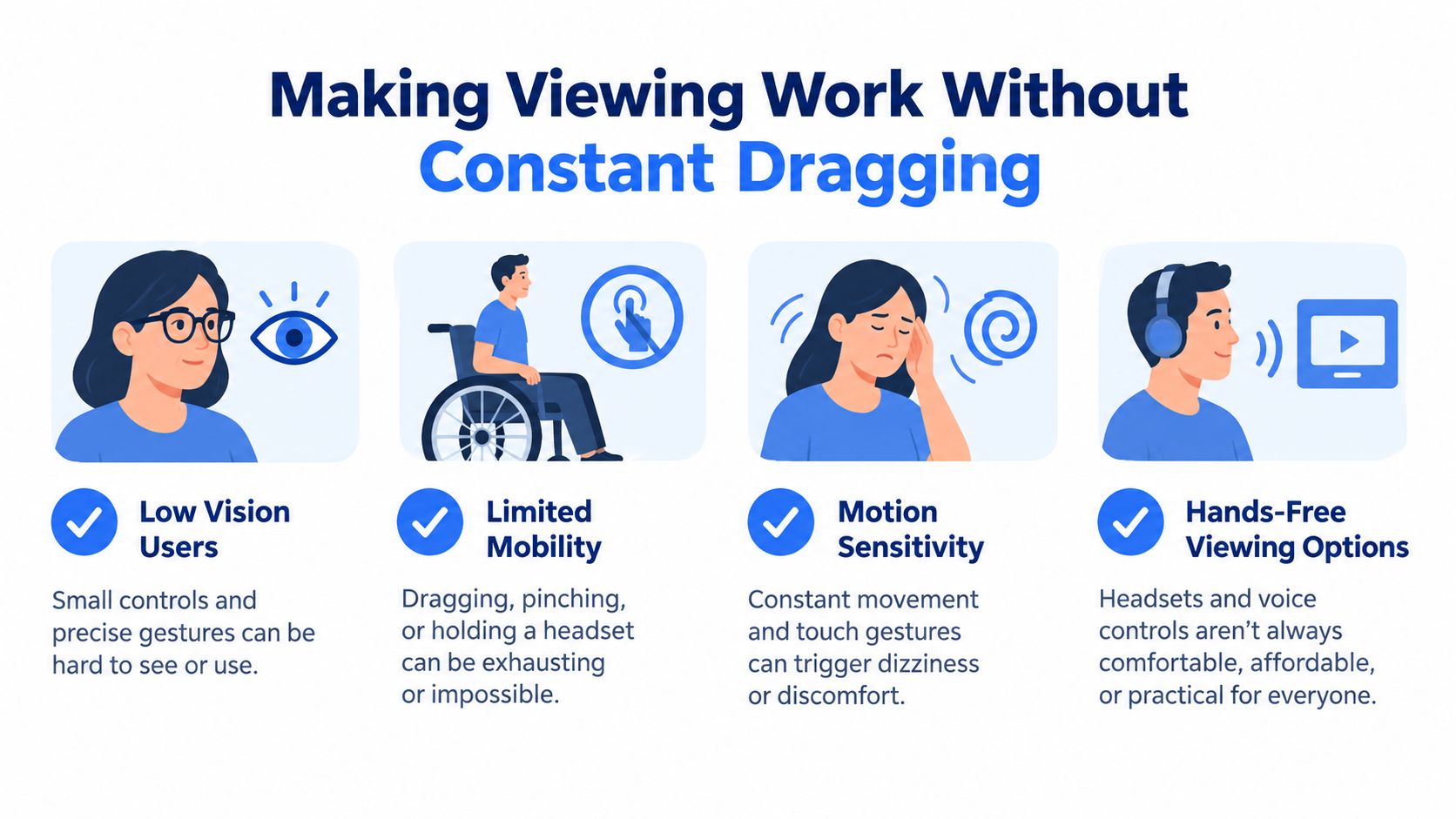
Test the information, not just the image
Accessibility testing for a panorama starts with one question: can someone reach the same conclusions without continuous motion? Remember that every gesture is a request to re-render part of a sphere inside a small viewport. Any barrier in that loop, a keyboard trap, an invisible focus indicator, a control a screen reader cannot name, blocks the information behind it. Run the tour with keyboard-only input and zoom, confirm focus stays visible, and check that screen readers announce the controls. High-contrast buttons help people distinguish actions, while captions and transcripts make narrated content available in more than one way.
Automatic rotation needs a reduced-motion option or a visible stop control. A short scene summary can set expectations before someone enters the viewer.
Sometimes the panorama is the wrong primary format. If the actual question is where the entrance sits and how the rooms connect, a labeled floor plan answers faster than any sphere. If the audience mostly watches rather than explores, a short walkthrough clip plays on every device without a single gesture. A conventional photo plus a clear text description can carry the same facts with none of the interaction cost.
Accessibility check: A panorama's alt text can identify the image, but it can't explain the layout on its own.
Consider a school, hotel, restaurant, or apartment building. A visitor may need to know where the entrance is, how rooms connect, whether there are stairs, where the bathrooms are, and what access barriers exist. A generic panorama description doesn't organize those details. A scene summary and floor plan can.
Before publishing a public tour, check it with a screen reader, keyboard-only input, enlarged text, and reduced-motion preferences turned on. Then confirm the alternatives cover the same decisions a visitor would make by looking around. The goal is to let each person understand the space in the way that works for them.
Fixing Blur, Lag, and Bad First Views
A panorama that looks sharp in the editor can look soft after the viewer turns. That is often a viewport-quality problem rather than a low pixel count. An equirectangular file works like a world map stretched flat: it spends a large share of its pixels near the poles, while a person sees only a slice of the sphere at any moment. Judge the areas people will closely inspect, such as room labels, signs, furniture edges, faces, and seams where walls meet.
A practical delivery workflow keeps a high-resolution master, then exports a smaller web derivative for the viewer. Compare both versions at the same heading and pitch inside the viewer, not side by side in a flat image editor. Research on alternative layouts shows that converting equirectangular content into a cube-map format can shrink file size substantially, which eases bandwidth and storage demands. Smaller files still do not guarantee that important detail survives compression.
Diagnose what the viewer sees
Perceptual-quality studies have tested 360 imagery at source resolutions far above what a single viewport can display. High source resolution gives the viewer room to crop cleanly, but it does not replace projection-aware encoding or compression checks. Aggressive whole-image compression tends to blur text, faces, and fine architectural edges, often exactly where someone looks when they turn toward a corner.
One sentence of caution here: a clean-looking export can still fail on a phone.
If the first view takes too long to appear, check asset weight, the number of requests, caching, and whether the page can show a usable frame before every scene finishes loading. If a stitch line or floor patch appears only while moving, inspect it again inside the interactive viewer. A patch that looks invisible in the flat rectangle can stand out once the viewer renders it as a perspective view.
For a closer look at reducing panorama weight while preserving a usable view, see this guide to bandwidth-efficient 360° tours.
Acceptance check: Match the original and web versions at the same viewport. Confirm stitching stays unobtrusive, labels remain readable at normal zoom, and the first usable view appears on both desktop and a constrained phone connection.
Publish One Space and Test It Today
Pick a single real space: a listing living room, hotel lobby, classroom, or restaurant floor. Check that the panorama has the expected 2:1 ratio, review its top and bottom, and choose a starting view that shows the feature a guest or buyer needs to understand first. A thoughtful opening makes the scene easier to enter, whether someone is looking on a laptop or a phone.
Before sending the tour to anyone, open it on both devices. Turn toward a sign or room label and read it at normal zoom. Watch how long it takes for the first useful view to appear, then try the keyboard controls or reduced-motion option if the tour will be public. Those checks expose problems that a clean-looking source file can hide.
Choose the delivery based on the job: send a short link for a private showing, embed the viewer on a website, publish to Street View when public discovery matters, or use a video when the audience won't interact. Virtual Tour Easy can take an existing 360 image, convert a regular photo into a 360 scene, or generate a panorama; its visual builder lets a team add another room, place a hotspot, choose a starting view, and share the result. That gives the team a practical way to publish a test tour without turning the first attempt into a full production project.
Start with one space, not an entire property or venue. Once the first view works on two devices and the important details remain legible, share it with a real viewer and use their experience to guide the next improvement.
Virtual Tour Easy lets teams upload an existing 360 image, turn a regular photo into a 360 scene, or generate a panorama, then arrange rooms and hotspots in a visual tour builder. Visit Virtual Tour Easy to publish one test space and check how it works on desktop and phone.