You're standing there with a GoPro in your hand, the battery isn't full, the card still has footage on it, and a firmware alert is sitting there like a small but annoying risk. That's usually the moment people search how to update GoPro and hope it's a quick checkbox. It can be quick, but only if the camera, the card, and the schedule are treated like part of the same job.
A firmware update isn't just software maintenance. It touches camera reliability, footage safety, and whether the camera is ready when a client, guest, or listing walkthrough starts. That's why the safest approach is to offload footage first, verify power, and treat the update as a small operational task instead of a same-day impulse. For broader shoot-planning context, a useful companion read is how to update your home for today's, because the same mindset applies, control the variables before the appointment starts.
| Factor | Quik App | Manual microSD |
|---|---|---|
| Best use case | Supported cameras with a stable phone connection | Pairing fails, app access is limited, or internet is unreliable |
| Setup effort | Lower once the camera is paired | More steps, but more predictable on location |
| Failure risk | Connection problems can interrupt the process | Most failures come from file placement, not the method itself |
| Required gear | Phone with the app and the camera | Computer, card reader or adapter, microSD card |
| Recovery value | Convenient first choice | Strong fallback when the app can't connect |
For 360 workflows, the update decision matters because the camera often carries the only source footage for a property or venue. A planning lens like cameras for 360 degree virtual tours helps frame the issue correctly, the camera has to be ready when the shoot window opens, not when the firmware happens to be convenient.
Table of Contents
- Before You Touch Anything, Treat the Update Like a Shoot Day
- Pick the Right Method for Your Camera and Situation
- Updating Through the Quik App on Your Phone
- Updating Manually With a microSD Card and Computer
- When Not to Update, and the Pre-Shoot Checklist
- Fixing a Failed Update by Symptom and Camera Type
- Verifying the Update and Walking Away With the Right Habits
Before You Touch Anything, Treat the Update Like a Shoot Day
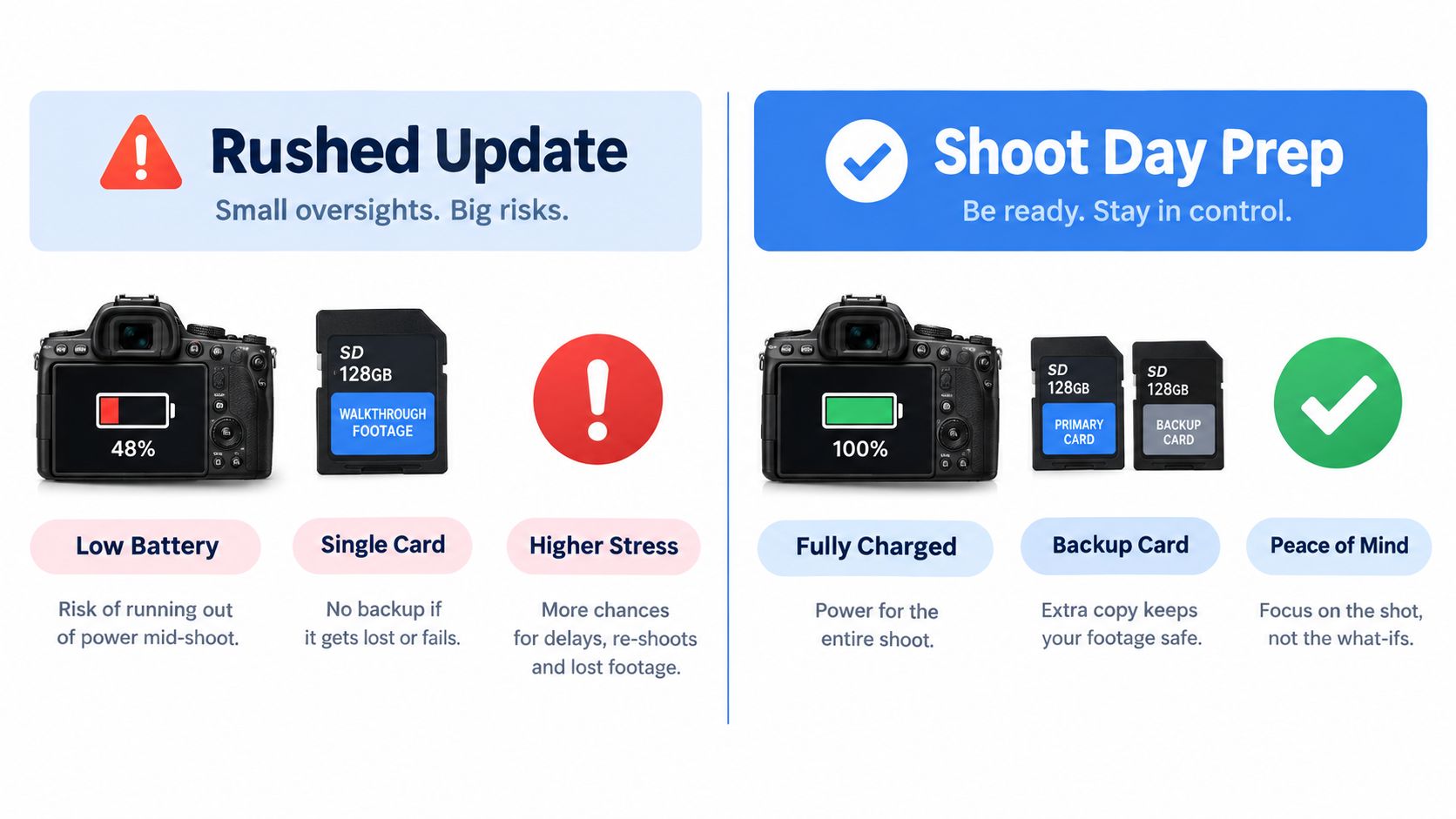
A firmware update started minutes before a paid walkthrough, hotel refresh, or architecture capture can push the entire shoot behind schedule. The usual causes are basic: a full card, low battery, or a camera that needs another restart. GoPro's instructions warn that the camera may restart several times during installation, so leave it untouched once the process begins.
The download isn't the hard part
The risk sits around the download. Check what remains on the camera, what is scheduled next, and whether there is enough time to recover if the update fails. Offload irreplaceable footage before starting. If the battery is marginal, sort out power first.
Practical rule: if the camera is needed for a deliverable within the next day, update it before the schedule gets tight, not while the clock is already counting down.
A bad card, an incorrectly placed folder, or an interrupted power supply can leave the camera stuck in a restart loop or unable to find the firmware package. The manual process also depends on the exact camera model and matching firmware file. Guessing the model or copying files into the wrong location creates avoidable recovery work.
Back up first, charge first, then start only when the camera can sit untouched. That sequence matters in real-estate and hospitality work, where the camera may carry the only source footage for a property or venue. Updating early gives you time to test the camera and change plans if something goes wrong.
The same control-the-variables mindset applies when you how to update your home for today's market, but the camera workflow has one added constraint: the footage may be impossible to recreate once the appointment ends.
Quik App vs. Manual SD Card Update
| Factor | Quik App | Manual microSD |
|---|---|---|
| Convenience | Faster when pairing works | Slower, but controlled |
| Dependency | Phone pairing and app support | Computer, card reader, and correct file handling |
| Risk profile | Connectivity issues can stop the process | File placement errors are the main risk |
| Best for | Supported cameras and stable environments | Field work, backup recovery, and offline situations |
Keep the update separate from other camera preparation, including mounting checks, lens cleaning, and battery swaps. The guide how to mount camera on tripod reinforces the same habit: complete setup deliberately instead of rushing through it before a firmware change.
Pick the Right Method for Your Camera and Situation
GoPro supports two update paths, the Quik mobile app and manual microSD-card installation. Quik suits supported cameras when the phone pairs reliably. The app checks for available firmware and guides the installation on screen, reducing file-handling errors during a busy preparation window.
Manual updating gives you more control. Choose it when pairing fails, the phone cannot run the app, internet access is unreliable, or the camera is heading somewhere a laptop, card reader, and cable are easier to trust than wireless setup. For teams planning cameras for 360-degree virtual tours, the method also affects scheduling because a failed update can consume the shoot window.
Decision before download
Use Quik when the camera pairs cleanly and the app recognises it. Choose the microSD method when the phone will not connect, the camera is older, or the update must happen away from steady connectivity. Pick one route before downloading and stay with it. Switching halfway through can leave the wrong file on the card or create a folder structure the camera cannot read.
Check power before either method. GoPro's published guidance for current models recommends at least 50% battery for a HERO13 Black update through its official process. Other cameras may use different requirements, so check the instructions for the specific model rather than applying that threshold universally. Low power and firmware installation make a poor combination, especially before a fixed appointment.
The practical rule is simple: use Quik when the connection is trustworthy, use microSD when reliability matters more than convenience. If neither option can be tested without pressure, postpone the update and protect the shoot schedule. A known working camera is safer than a newly updated camera you have not yet tested.
Updating Through the Quik App on Your Phone
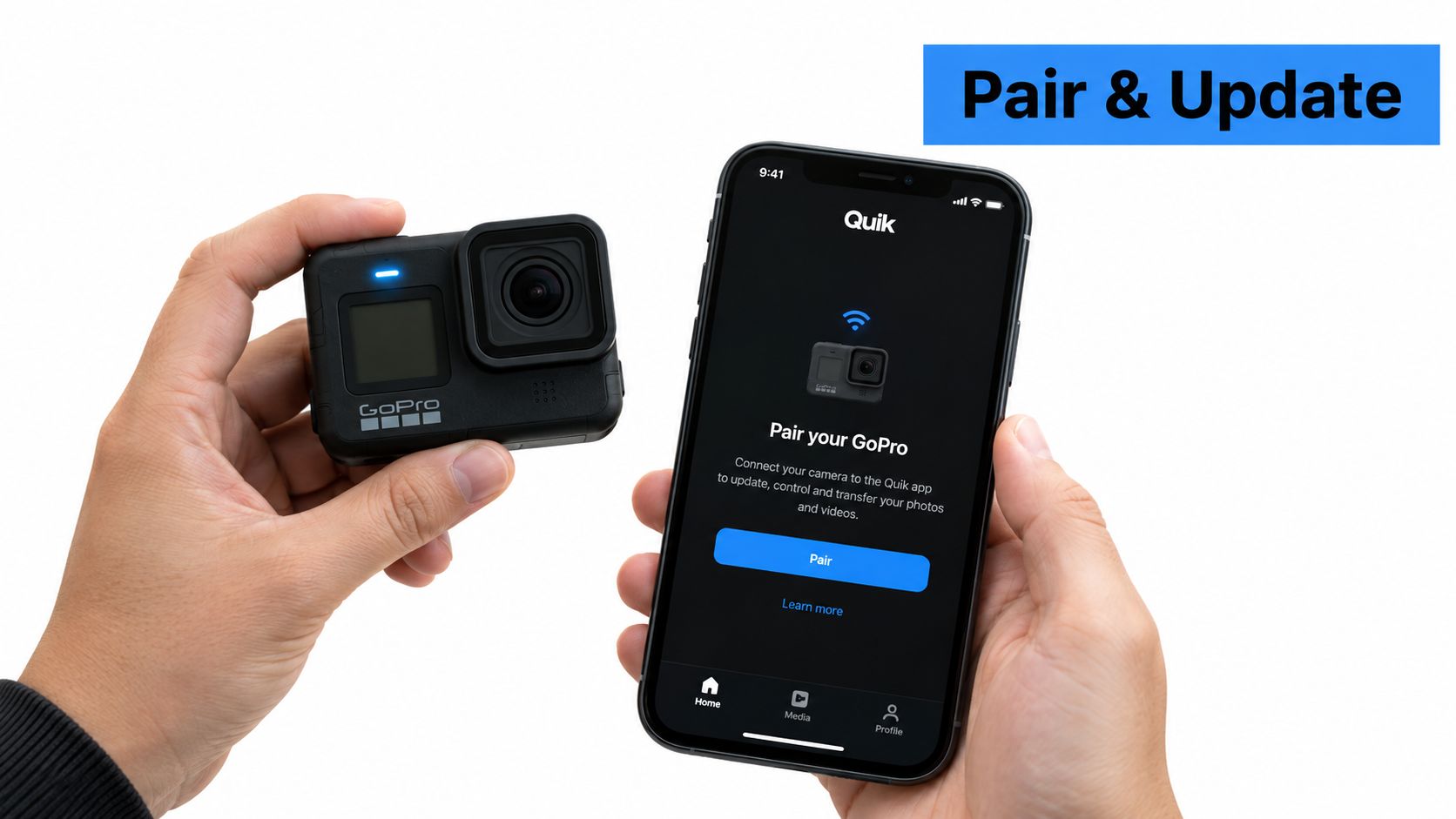
The Quik method works best when the camera and phone are already speaking the same language. Pair the camera through the app, wait for the firmware alert, and follow the on-screen prompts exactly as they appear. The app is doing the hand-holding here, so the user's job is mostly to confirm the prompts and leave the camera alone once installation starts.
What normal looks like
A clean Quik update usually feels boring. The camera connects, the firmware appears, the app guides the installation, and the camera may reboot more than once while it works. That rebooting is not automatically a failure. On supported cameras, it's part of the install cycle and the screen may go dark while the device processes the new firmware.
The mistake is treating a pause like a problem too early. If the camera is still in its install sequence, pressing buttons or cycling power can do more harm than good. On removable-battery models, recovery can involve removing and reinserting the battery if the camera hangs, but that should be a recovery move, not a reflex.
Leave the camera alone while it's restarting. A firmware update can look frozen and still be moving through the install.
What actually trips people up
Two things cause most Quik failures. First, the connection drops before the install finishes. Second, the camera appears unresponsive because it's rebooting behind the scenes. In both cases, the answer isn't to mash buttons. The first response should be to let the camera settle, then reconnect or recover only if the process clearly stopped.
Quik also has limits. If the camera is older, the phone can't run the current app version, or the environment blocks a stable wireless handoff, the app stops being the best choice. That's when the manual card method becomes the safer route, especially for creators working on location with limited time to troubleshoot.
Updating Manually With a microSD Card and Computer
The manual method is the one that saves a job when wireless convenience fails. Start by identifying the exact camera model, then download the matching official firmware ZIP from GoPro's model-specific page. Don't reuse a package from another HERO generation, even if the name looks close enough. GoPro is strict about this because the camera can only read the update it was built to expect.
File placement matters more than people think
After downloading, extract the ZIP so the card ends up with an UPDATE folder at the root level. That means the folder sits directly on the card, alongside normal folders such as DCIM and MISC. The ZIP file itself does not go on the card, and the folder must not be nested inside another directory. If the folder is renamed, incomplete, or placed in the wrong spot, the camera can't detect it.
Once the files are in place, safely eject the card from the computer, power the camera off, insert the card, and then power the camera on. The camera should begin the update automatically. During installation it may reboot several times, and that's normal.
The HERO13 Black uses a language-selection screen as a completion signal, which is a helpful visual check when the install finishes. Other models can signal success differently, so the exact model still matters even after the update begins.
The steps that keep the process clean
- Confirm the exact model. The firmware has to match the camera generation.
- Download the correct ZIP. Use GoPro's own model-specific update page.
- Extract the archive. The card needs the
UPDATEfolder, not the ZIP file. - Place it at the root. No extra folder layer, no renaming, no shortcuts.
- Eject properly. A messy eject can corrupt the copy before the camera sees it.
- Power the camera on and wait. Don't touch buttons during installation.
The manual path takes more attention, but it's reliable when the app isn't. It's especially useful for production cameras used in real-estate, hospitality, and architecture, where the process should be repeatable and predictable rather than dependent on a phone pairing at the last second.
When Not to Update, and the Pre-Shoot Checklist
A camera booked for a property walkthrough, hotel refresh, inspection, or event capture should not receive a firmware update on the morning of the job. Updating can add reboot time, file-handling risk, and a new variable before a client depends on the footage. If the current firmware is stable and the shoot is close, finishing the deliverable may be the safer choice.
Delay the update when the schedule matters
Avoid starting an update immediately before recording, after filling a card with important footage, or with a battery level that leaves little margin for the camera model in use. GoPro's guidance for current models such as the HERO13 Black requires at least 50% battery before an update. Installation can still involve powering the camera off and on, so schedule it when a failed attempt will not disrupt the job.
Update the night before or well ahead of the shoot. Afterward, leave time to test recording, playback, menus, and card access. A paid production camera deserves the same preparation as the rest of the kit. Finish the check before setup pressure begins, alongside physical preparation such as how to mount camera on tripod.
Operational note: If the camera is mission-critical, a stable firmware version that already works may be more useful than a new feature set until the job is complete.
Keep the checklist short and real
- Back up original footage first. Move important files off the card before changing firmware.
- Match the exact model. A different HERO generation may require different firmware and behave differently during installation.
- Keep a spare card ready. A replacement gives you a practical retry option if the current card causes trouble.
- Confirm stable power. Charge the camera fully when possible, and do not begin with a weak battery.
- Leave time after installation. Record a short test clip, review it, and confirm the camera responds normally before the client arrives.
The checklist should also include the shoot's actual operating conditions. Confirm the intended resolution, frame rate, stabilization setting, and available storage. A firmware update can leave settings changed or reset, and discovering that after the first take costs more than checking beforehand.
Print this list or save it to your shoot-day notes. Five checks take under ten minutes and remove common failure causes before they reach the set.
Fixing a Failed Update by Symptom and Camera Type
A failed update gets easier to handle once the symptom is named correctly. The common branches are simple, Quik can't connect, the update starts and then stalls, the camera loops or looks frozen, and the card isn't detected. Each branch points to a different first move, and retrying blindly usually just repeats the same failure.
Start with the symptom, not the guess
If Quik can't connect, the issue is usually pairing or app compatibility. The first move is to confirm the camera is supported and the phone can run the current app version. If that still fails, the manual card method is the more dependable recovery path.
If the update starts and then dies, the question becomes power, card quality, or file placement. A known-good microSD card matters here, and so does making sure the copied folder is exactly UPDATE in uppercase at the card root. A renamed folder, a nested folder, or a partial copy will break detection.
If the camera appears stuck or keeps looping, resist the urge to keep restarting it. GoPro's support guidance for removable-battery cameras points to more physical recovery steps, like removing and reinserting the battery or trying another microSD card. Formatting can also be part of recovery, but that erases footage, so the files need to be offloaded first.
If the camera doesn't detect the card at all, the card itself may be the problem. Format only after the footage is safe, then retry with the official firmware files copied fresh. That's also the point where a second card can save time, because a borderline card can look fine in a computer and still fail inside the camera.
Match the recovery to the camera design
Removable-battery models offer a more direct recovery path because the battery can be pulled and reseated. Newer sealed-body cameras usually need a more careful retry cycle, since the user can't reset power the same way. That's why it helps to know the camera generation before the failure happens.
The core lesson is simple. Diagnose first, then retry once the cause is clear. Most failed updates are not mysterious, they're file placement, card quality, pairing, or power.
Verifying the Update and Walking Away With the Right Habits
A finished install still needs a practical check. Open the camera menu, confirm the firmware version matches the update you intended to install, then record a short test clip. Review that clip before packing the camera. It can reveal storage errors, strange behavior, or a camera that powers on but is not ready for production.
If the update feeds a 360 workflow, run the test capture through a photo 360 app workflow so storage, stitching, and transfer are checked in the same sitting. A file that records successfully but fails during transfer can still disrupt the shoot.
Keep the routine deliberately dull. Back up footage first, confirm the exact camera model, check the UPDATE folder at the card root, and keep power connected during installation. Record the firmware version and test result somewhere you will find them before the next job.
The timing matters as much as the install. Update when the schedule leaves room for testing, not on the morning of a deliverable. If the camera has already passed a reliable pre-shoot check and the change is not required, leave it alone until you have that safe window. I have learned this after treating an update as a quick chore and losing time to recovery instead.
Firmware maintenance belongs with production hygiene. It protects the data path, the camera schedule, and the handoff to editing or a client. For the next equipment decision, the camera trade-in guide for Singaporeans can help frame whether an older action camera should stay in service or be replaced.
Virtual Tour Easy helps creators and property teams turn camera footage into usable 360° experiences. Visit Virtual Tour Easy to see how it can support tours, listings, and location shoots.