A property manager has launched a mobile app for virtual tours, added a Google Tag Manager web container, and is waiting for tour_completed events to appear in GA4. The dashboard remains empty. The implementation may look finished, but the collection path is wrong.
GA4 app tracking doesn't work like website tracking. Native Android and iOS activity is collected through Firebase Analytics, then reported in a linked GA4 property. The hard part isn't creating an event. It's proving that the SDK captures the right action, that consent permits collection, that DebugView shows the expected payload, and that the event can support a business outcome such as a qualified tour lead.
Table of Contents
- Why GA4 App Tracking Routes Through Firebase First
- Prerequisites and Account Setup Before You Touch Code
- Installing the GA4 and Firebase SDKs in Your App
- Defining Events and Parameters That Map to Real Actions
- Verifying Data Flow with DebugView and Realtime
- Keeping Your Event Catalog Lean and Decision-Useful
- Turning App Data Into Qualified Leads and Revenue Insights
Why GA4 App Tracking Routes Through Firebase First
A property manager can instrument a native virtual-tour app correctly and still see no useful app data if the collection path is wrong. Native Android and iOS activity reaches GA4 through Firebase, so the Firebase project, registered app, and Analytics property form one measurement chain. Google documents this linked setup and the availability of app reporting after the connection succeeds in Google's GA4 app setup documentation.
The flow has four parts:
- The mobile app calls the Firebase Analytics SDK.
- Firebase associates the installation with its registered Android or iOS app.
- The linked Firebase project forwards app events to the GA4 property.
- GA4 makes those events available in app streams, DebugView, Realtime, explorations, and conversion reporting.
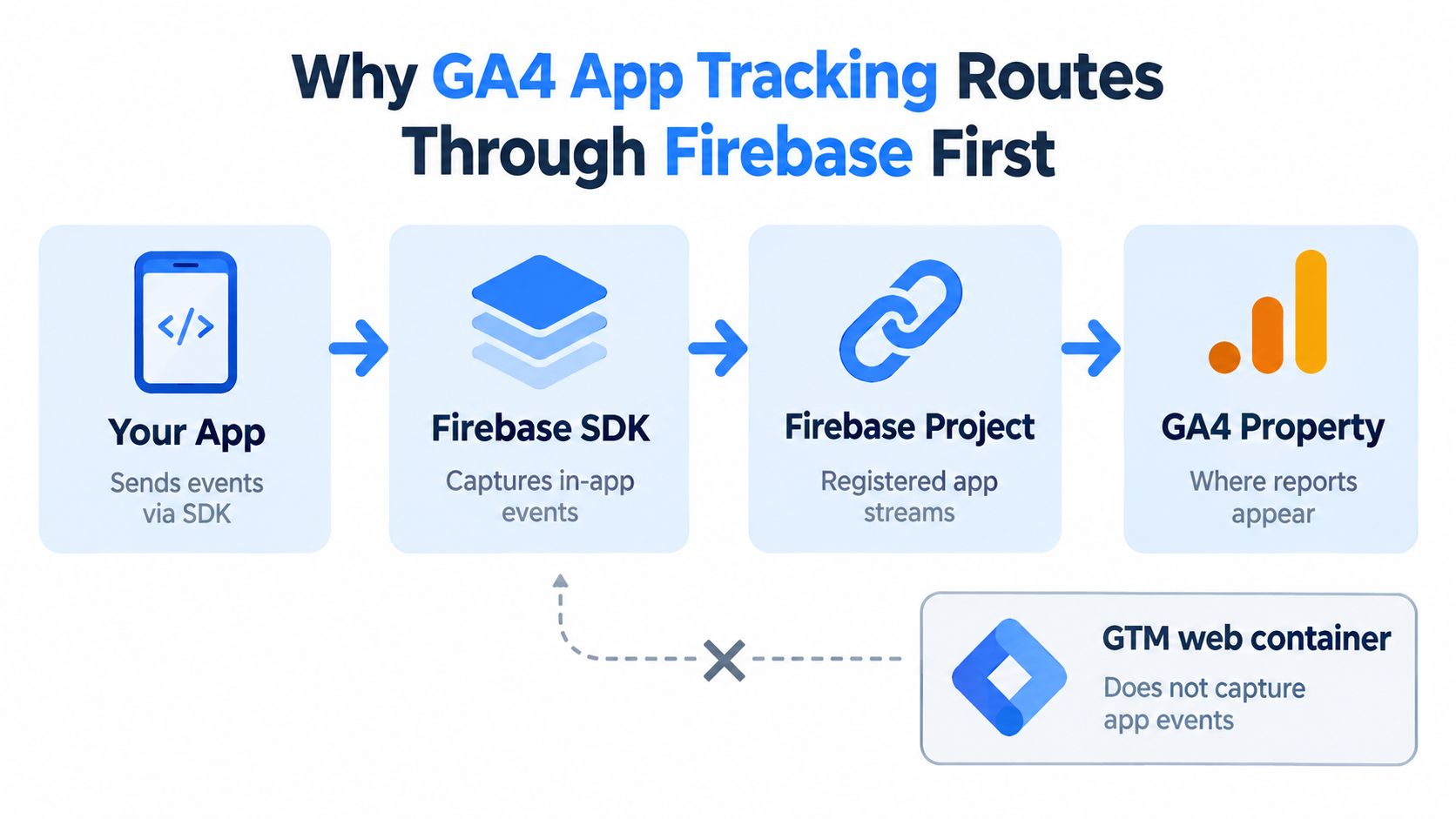
A GTM web container doesn't capture native app events by itself. It can measure a website or an in-app webview because those surfaces run JavaScript. A native Android or Swift button requires an SDK call or another native collection method. Mixing the two paths can create missing events, duplicate webview activity, and false confidence that the app stream is working.
The operational consequences
Firebase affects delivery and identity as well as collection. Native SDKs can queue events during connectivity loss and send them later. Authentication can provide a stable user_id, while Firebase supplies app-instance identifiers for app measurement. Define how those identifiers behave when a user opens a property deep link on the web, continues in the app, and submits a lead through an embedded form.
GA4 also uses an event model rather than a pageview model. Viewing a tour screen does not automatically mean a meaningful property view, and resuming an app does not establish a qualified conversion. Map explicit actions such as tour_view, schedule_tour, and qualified_lead to parameters describing the property and acquisition path. That mapping lets teams validate the payload in DebugView, then connect app activity to qualified tour leads in VirtualTourEasy-style workflows.
Consent belongs in the design before instrumentation ships. Teams handling mobile identifiers and embedded experiences can use this app data privacy explained resource to consider consent, storage, and identifier choices.
Practical rule: Native app actions start with Firebase Analytics. Use GTM for web pages and webviews that actually run JavaScript.
Prerequisites and Account Setup Before You Touch Code
A correct logEvent call cannot compensate for a broken account structure. Before writing code, confirm that the Firebase project, registered applications, and GA4 property belong to the same measurement plan. Otherwise, later DebugView checks may point to the wrong app or property.
Establish the project relationship
Create or select the Firebase project that owns the Android and iOS applications. Register each app with the exact package name or bundle identifier used by the builds. A mismatch can initialize the SDK against a different app from the one under test.
From Firebase, open Project Settings, choose Integrations, and connect the project to the intended GA4 property. This relationship supplies the account structure required for app measurement, as noted earlier. Record the selected project and property in the implementation ticket so developers, analysts, and QA test against the same destinations.
Check access before implementation
Permission failures often resemble instrumentation bugs. Firebase project changes require an appropriate project role, while GA4 stream and event configuration require edit access to the Analytics property. Assign ownership before development starts, including who reviews event names, who validates payloads, and who can change the property.
Google Ads has a separate permission boundary. The app team can implement Firebase events and mark key events in GA4. Creating Ads conversions and using those events for bidding requires the Ads account and linked property to be configured correctly. The Google Ads conversion workflow is covered in the final section.
Decide consent behavior
Document what happens when consent is granted, denied, or never selected before installing an SDK. Define whether analytics storage remains blocked until the user chooses, and create test cases for each state.
Tour workflows need a rule for handoffs between a shared property link, a web page, a native app, and an in-app webview. Web and app consent states may differ, so decide which state governs measurement after the handoff. Use this user consent management guidance to turn the decision into an implementation checklist. Record whether a user can browse a virtual tour, open a deep link, and submit a qualified tour lead without creating inconsistent consent records.
Installing the GA4 and Firebase SDKs in Your App
The SDK installation must match the Firebase apps registered during setup. Android and iOS use different dependency systems, but both need the Firebase configuration file associated with the correct app.
Android implementation
Android projects typically add the Google services plugin at project level, apply it in the app module, and include Firebase Analytics through the Firebase Bill of Materials. A simplified module dependency looks like this:
plugins {
    id("com.google.gms.google-services")
}

dependencies {
    implementation(platform("com.google.firebase:firebase-bom:<version>"))
    implementation("com.google.firebase:firebase-analytics")
}
The configuration file belongs in the Android app module, and the package identifier must match the Firebase registration. The plugin reads that configuration so the SDK can initialize the intended Firebase app. The exact dependency version should follow the project's supported release policy rather than being copied blindly from an old tutorial.
iOS implementation
iOS teams can install FirebaseCore and FirebaseAnalytics through Swift Package Manager or CocoaPods. Firebase should be configured during application startup before analytics calls are made:
import FirebaseCore
import FirebaseAnalytics

func application(
    _ application: UIApplication,
    didFinishLaunchingWithOptions launchOptions: [
        UIApplication.LaunchOptionsKey: Any
    ]?
) -> Bool {
    FirebaseApp.configure()
    return true
}
A production app needs more than a successful compile. Virtual-tour workflows often involve authentication, deep links, and webviews. If user_id is assigned only after login, the team should decide whether pre-login tour activity remains anonymous, whether post-login events receive the identifier, and how the reporting model treats the transition.
Authentication and lifecycle checks
A common mistake is to assign identity in a callback without checking app lifecycle behavior. Resume handlers, SSO callbacks, and webview bridges can run more than once. If each callback replays the same event, the reports will count implementation behavior rather than user behavior.
The app should initialize Firebase once, assign user properties deliberately, and resolve the relevant app-instance identity when server-side event delivery is required. For a VirtualTourEasy-style workflow, the handoff between a shared tour URL, native app screen, and embedded lead form deserves its own test path instead of being treated as a normal page load.
Defining Events and Parameters That Map to Real Actions
A user opens a shared property link, enters the app, reviews a tour, and submits an inquiry through an embedded form. If tracking records only screen views, the team cannot distinguish a qualified tour lead from casual browsing. Firebase supports a flexible, event-based mobile model in its app event documentation, so event design should follow business actions rather than every available automatic signal.
A tour_view event should represent a meaningful property-tour view, not each screen redraw:
Firebase.analytics.logEvent("tour_view") {
    param("tour_id", tourId)
    param("property_id", propertyId)
    param("listing_price", listingPrice)
}
The iOS implementation should keep the same event and parameter names:
Analytics.logEvent("tour_view", parameters: [
    "tour_id": tourId,
    "property_id": propertyId,
    "listing_price": listingPrice
])
A lead submission can capture the source and qualification result:
Analytics.logEvent("form_submit", parameters: [
    "lead_source": leadSource,
    "qualification_score": qualificationScore
])
Use lowercase names with underscores and stable definitions. property_id should contain the same kind of identifier on Android and iOS, rather than a display title on one platform and a database key on the other. Register only fields that support reporting, since GA4 limits the custom dimensions and metrics a property can create.
Deep links and embedded webviews
A shared property URL may carry a tour identifier, source marker, or campaign value. When an Android App Link or iOS Universal Link opens the app, the handler should validate those values, place them in session context, and pass them into the first meaningful event. Guard the lifecycle path so the deep-link callback and screen rendering cannot produce two tour_view events for one user action.
Webviews require an explicit bridge. JavaScript can send a structured message to native code, which validates the action before logging it to Firebase. Decide whether webview pageviews belong to the app stream, the web stream, or both. Apply the same rule to lead actions, then deduplicate events at the bridge boundary.
| User Action | Event Name | Origin | Key Parameters |
|---|---|---|---|
| App opens for the first time | first_open |
Automatically collected | Firebase app context |
| A user begins a property tour | tour_view |
Native SDK or validated bridge | tour_id, property_id, listing_price |
| A user submits an inquiry | form_submit |
Native SDK | lead_source, qualification_score |
| A user schedules a visit | schedule_tour |
Native SDK | property_id, appointment context |
| A purchase or paid action completes | purchase or in_app_purchase |
SDK or server event | Value, currency, item context |
Event names do not create performance insight by themselves. Mark the events that represent qualified intent as key events, then build audiences and reports around questions such as which campaign produces completed inquiries. Teams setting up performance marketing tracking setup should define that decision before adding another payload field. For embedded tour interactions, the GA4 button-click tracking guide offers a related implementation path.
Verifying Data Flow with DebugView and Realtime
A tour lead can disappear between a Firebase event and a GA4 report. Test the full path on a controlled device before trusting production data, especially when a deep link or in-app webview hands a user from a property page to an inquiry form.
Enable device-level debug mode
On Android, enable Firebase Analytics debug mode on the QA device:
adb shell setprop debug.firebase.analytics.app your.package.name
On iOS, add -FIRAnalyticsDebugEnabled to the Xcode scheme's launch arguments. Restrict debug mode to QA builds or test devices. Production traffic makes it harder to separate test events from real tour activity and can pollute validation.
Open GA4 DebugView, select the device generating the test activity, and run one defined sequence. A short delay is normal. If the expected event remains absent after that sequence, inspect the implementation instead of repeatedly tapping the same control.
Validate consent before payload details
Consent can stop collection without creating an obvious application error. DebugView may remain empty when privacy controls or consent settings deny analytics storage. Start QA with the consent event or default state, then grant consent and repeat the action. Confirm whether events appear after the state changes.
If consent is set during installation and updated later, test both paths. This matters for app-to-web handoffs: a user may open a property deep link, continue in an embedded webview, and submit a qualified tour inquiry under a different consent state. Validate the bridge behavior and the resulting GA4 stream assignment rather than assuming the SDK handled the transition.
Promote only validated events
Before marking an event as a key event or using it in lead analysis, check four details:
- Event identity: The expected name appears once. Lifecycle code and the webview bridge have not logged the same action twice.
- Parameter quality:
tour_id,property_id, source values, and qualification fields contain usable values. - User context: The intended user property or authenticated identifier is attached at the right stage of the journey.
- Reporting behavior: Realtime activity and later reports align. DebugView alone is not enough.
DebugView confirms that a payload arrived. It does not confirm that the payload represents one clean business action or that attribution will persist across a web-to-app handoff.
Keeping Your Event Catalog Lean and Decision-Useful
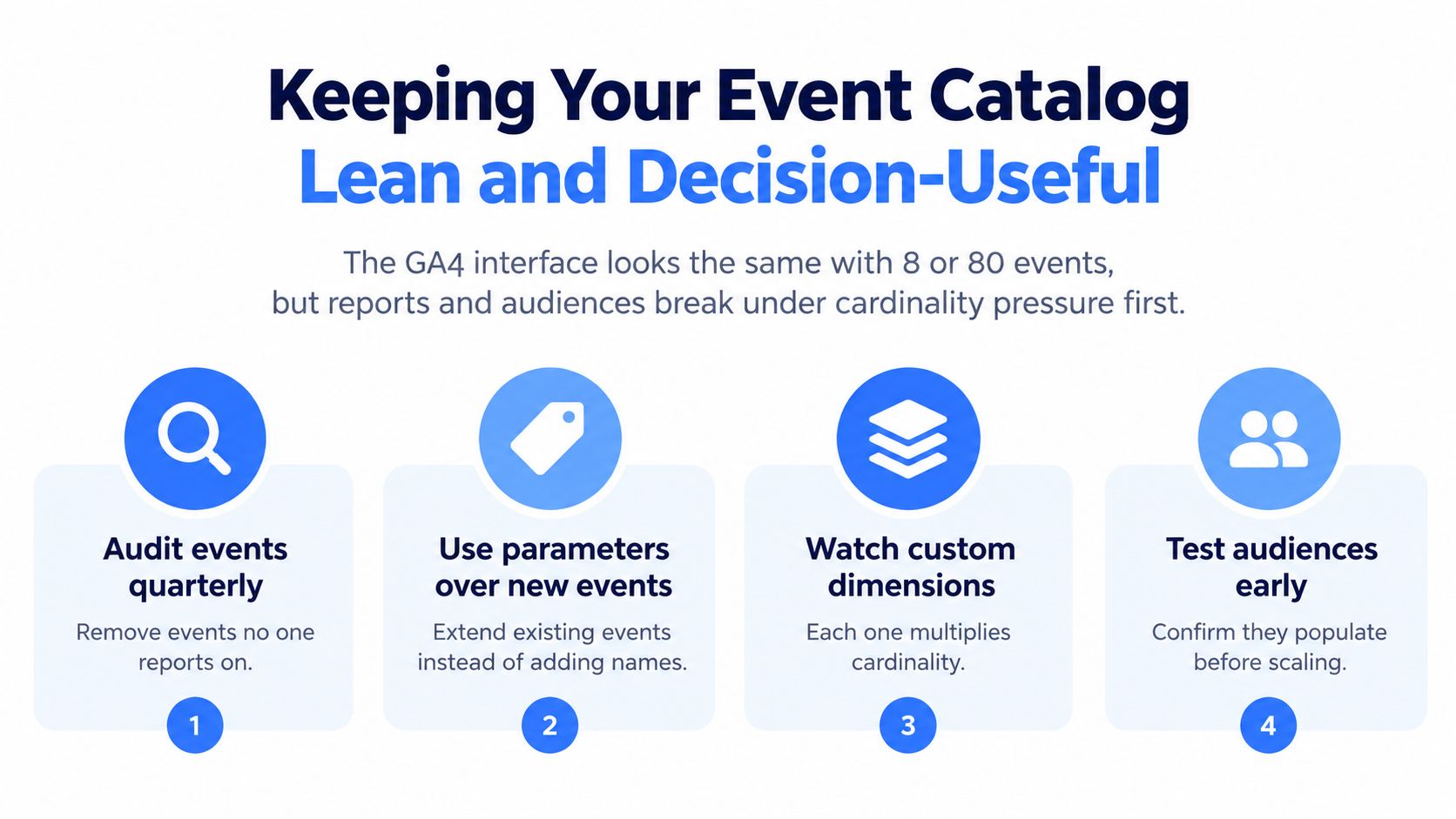
A GA4 property can look orderly while its event catalog becomes difficult to use without notice. Redundant names split one action across reports and teams. Excessive parameters multiply combinations that developers must implement and analysts must interpret. The cost appears later in funnel definitions, audiences, and exploration maintenance.
A practical guideline is to keep mobile analytics focused on roughly 20 to 30 question-driven events, with only 3 to 4 true business conversions. Treat those figures as planning guidance, not a platform quota. The useful rule is to instrument actions that answer a business question, rather than turning every screen interaction into permanent schema.
Use a request triage
Every new event request should answer three questions:
- Decision: Will a team use this event to change acquisition, product, sales, or retention work?
- Destination: Does an active report, audience, or exploration require it?
- Schema reuse: Could an existing event describe the action with one additional parameter?
Suppose a property manager requests tour_view_luxury, tour_view_student, and tour_view_short_term. One tour_view event with a property-type parameter usually gives analysts a cleaner design. It keeps the funnel unified while preserving segmentation for property type.
Govern the schema like software
Assign an owner to the event catalog and maintain definitions, examples, parameter rules, and a release process. A quarterly review can compare active events with the reports and audiences that depend on them. Retire events nobody queries only after checking historical reporting needs and any downstream exports.
Custom dimensions need the same review. Each registered dimension becomes another field that stakeholders may filter, compare, or misunderstand. A small, stable schema is easier to implement consistently across Android, iOS, and webview bridges, especially when deep-linked tour journeys connect native app activity with embedded web actions.
Turning App Data Into Qualified Leads and Revenue Insights
A visitor can open a property tour in Safari, continue through a deep link into the app, and submit a form inside an embedded webview. If the tracking design stops at listing_view, marketing sees engagement while sales receives no reliable signal about lead quality. The useful measurement path connects app activity to outcomes such as a qualified lead, scheduled visit, application, or revenue.
A VirtualTourEasy-style flow might begin with session_start, continue through a deep-linked listing_view, and reach qualified_lead after a form submission passes the operator's qualification rules. Store that qualification logic in the business system as well as the analytics payload. GA4 can report the event, but the CRM or lead-management system should decide whether a lead is sales-ready.
Build the funnel around outcomes
The mapping below keeps implementation choices tied to reporting decisions:
| Event Name | Funnel Stage | GA4 Report or Exploration | Attribution Caveat | Key Custom Parameter |
|---|---|---|---|---|
session_start |
Entry | Realtime and acquisition reporting | May begin on web before the app opens | Source context |
listing_view |
Consideration | Funnel exploration by property | Deep-link values may be lost during handoff | property_id |
tour_completed |
Engagement | Funnel exploration and audience analysis | Webview and native events can split streams | tour_id |
schedule_tour |
Intent | Key-event reporting | Returning users may have incomplete source context | Appointment context |
qualified_lead |
Sales qualification | Key-event exploration | Consent or missing identifiers can hide joins | lead_source, qualification data |
purchase or in_app_purchase |
Revenue | Monetization and custom exploration | Server events require correct app identifiers | Value, currency, item context |
The team can connect Firebase events with Google Ads conversions by marking meaningful events as key events, linking the required app and purchase systems, and creating Ads conversions from those events through the documented app campaign workflow. This separates high-intent actions from visits that only indicate browsing.
Expect imperfect journeys
App and web journeys fragment when identifiers are unavailable or consent limits storage. A person may discover a property in Safari, open the native app from a shared link, and submit a form in a webview. GA4 may record those actions as separate users, sessions, or streams even when they belong to one journey. Mobile GA4 measurement guidance describes the same limitation: the platform reports events and related dimensions, not a complete replay of the person's path in its mobile analytics overview.
Use each symptom to select the right diagnostic surface:
- Missing deep-link source: Check acquisition dimensions on
listing_viewand inspect the handoff payload. - Duplicate tour completion: Compare native lifecycle logs with webview bridge messages, then review the event count in DebugView.
- Unattributed lead: Confirm that the authenticated identifier and app-instance values existed when
qualified_leadfired. - Missing server event: Validate the Measurement Protocol payload, including
api_secret,firebase_app_id, andapp_instance_id, as required for Firebase-based mobile delivery in Google's Measurement Protocol documentation. - Returning user treated as inactive: Compare inactivity-based audiences with engagement-based audiences before changing lead qualification logic.
Virtual Tour Easy supports virtual-tour publishing, visitor analytics, lead capture forms, and integrations for GA4, GTM, and tracking pixels. Teams implementing this workflow can review the platform's conversion tracking setup alongside the native Firebase schema, then test the complete path from shared tour link to qualified lead.
Virtual Tour Easy lets real estate, hospitality, education, and venue teams create immersive tours, add lead forms, and connect tour interactions with analytics systems. Visit Virtual Tour Easy to review a workflow that captures engagement alongside qualified-lead events for marketing and sales analysis.